Best Budget Ergonomic Keyboards Under $80 for 2026

Best Budget Ergonomic Keyboards Under $80 for 2026
You don’t need to spend to stop your wrists from aching at the end of a workday. A budget ergonomic keyboard can meaningfully reduce strain if you pick one with actual ergonomic features—not just a curved shape and marketing copy. This guide walks you through what actually matters in a sub- board, then names the keyboards that deliver on that promise.
What Makes an Ergonomic Keyboard Actually Work
Ergonomic keyboards aren’t magic. They work by reducing the angle your wrists hold during typing, lowering the stress on tendons and nerves that lead to carpal tunnel and repetitive strain. The best sub- models share a few core traits:
- Split or curved layout: Separates the left and right key sections so your arms sit at a more natural angle, not twisted inward.
- Wrist rest or palm support: A built-in cushion or platform under your palms keeps your wrists level with your forearms instead of bent backward.
- Moderate key travel: Shallow keys (like laptop-style) require less finger movement than ultra-deep mechanical switches, reducing finger fatigue over 8+ hours.
- Quiet operation: Loud keys = subconscious tension. Quieter switches let your hands relax.
Budget keyboards often skip premium materials and backlighting to keep the price down—and that’s fine. A board with a proper split layout beats a “gaming” keyboard with RGB and no ergonomic thought.
Top Budget Ergonomic Keyboards Under $80
Microsoft Sculpt Ergonomic Keyboard
Microsoft Sculpt Ergonomic Keyboard
The Sculpt is the standard-bearer for budget ergonomic typing. Its split, domed layout angles each half away from your centerline, mimicking how your arms naturally rest. The cushioned palm rest is firm enough to actually support weight without going mushy. Most users report noticeable wrist relief within 2–3 weeks of daily use, particularly those with mild carpal tunnel symptoms.
The keyboard uses membrane switches—shallow, quiet, and reliable. Battery life is solid (several months on four AAs), and it pairs via USB dongle or Bluetooth. The main trade-off: the chiclet-style keys feel less satisfying to type on than mechanical switches, and the layout is fixed (no customization).
Best for: Anyone transitioning from a flat keyboard who wants immediate, measurable wrist relief.
Logitech Wave Keys
The Wave Keys trade the Sculpt’s split design for a gentler curve across the entire board. It’s less radical ergonomically but easier to adjust to if you’re coming from a standard keyboard. The wave shape rolls the keys slightly upward toward the center, which naturally reduces wrist extension (backward bending). A soft palm rest runs the full width underneath.
This board is wireless (USB receiver), whisper-quiet, and built to last. The Wave Keys is particularly comfortable for 8+ hour workdays, especially for people with early-stage carpal tunnel symptoms. It’s not a split keyboard, so the ergonomic benefit is more modest than the Sculpt, but many users prefer the gentler learning curve.
Best for: Beginners who want proven ergonomic relief without a dramatic layout change.
Keychron K7 Pro
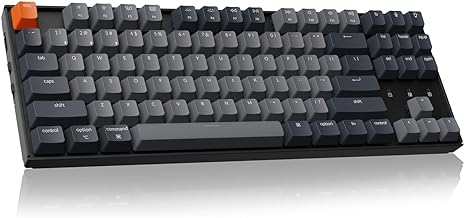
If you’re a mechanical keyboard enthusiast tired of typing on rubber-dome boards, the K7 Pro brings hot-swappable switches and a compact 65% layout at a price that doesn’t require a second mortgage. The compact size actually helps ergonomics: your arms stay closer together, reducing shoulder tension.
The board ships with Gateron switches (smooth, quiet, and satisfying to type on). You can swap in different switches to fine-tune feel. It connects via Bluetooth or USB-C and has a rechargeable battery. The ergonomic benefit comes from the compact layout and quality switches—not a split design—so it’s a better fit for people who value typing feel over maximum wrist relief.
Best for: Mechanical keyboard fans who want ergonomic improvement without abandoning tactile feedback.
Anker ErgonomicKeyboard 2.4G
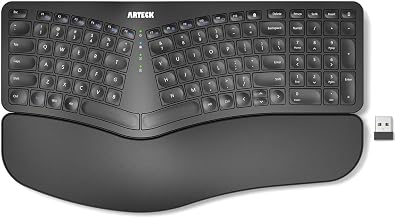
Anker’s entry is stripped-down but honest. It has a gentle curve, a modest palm rest, and wireless 2.4 GHz connectivity. It won’t win any design awards, but it works. The keyboard is reliable over years of daily use, the battery lasts weeks between charges, and the quiet membrane switches are forgiving for high-volume typists.
The curve is less pronounced than the Sculpt’s split, so ergonomic gains are incremental rather than dramatic. But at the budget-friendly tier, this board offers solid fundamentals without gimmicks.
Best for: Budget-conscious home-office workers who need reliable wrist support without premium pricing.
Logitech K380
The K380 is a compact, ultra-portable option that pairs with multiple devices via Bluetooth. It’s not explicitly ergonomic—the layout is standard—but its low profile and lightweight design appeal to people who type in varied positions (desk, lap, couch). Some users find the shallow key travel easier on the wrists than a full-size mechanical board.
This is a compromise pick: you’re trading dedicated ergonomic features for portability and multi-device convenience. If you’re bouncing between a laptop and a desktop, the K380 might be worth the trade-off.
Best for: Remote workers and travelers who need flexibility across multiple setups.
Apple Magic Keyboard
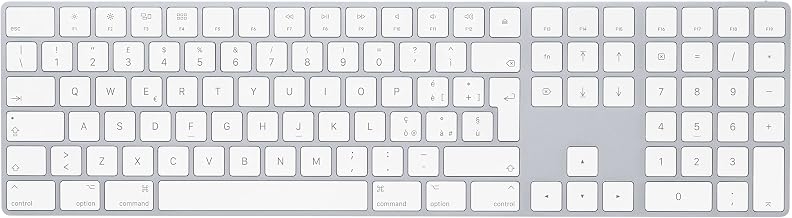
If you’re in the Apple ecosystem, the Magic Keyboard is a tempting option at the sub- tier (depending on sales). It’s beautifully made, integrates seamlessly with macOS and iOS, and has a low-profile scissor-switch design that some users find less fatiguing than mechanical boards.
However, it’s not ergonomic in any traditional sense—no split, no palm rest, no curve. The appeal is build quality and ecosystem fit, not wrist relief. Mac users often pair it with an external wrist rest pad for actual ergonomic benefit.
Best for: Mac users who prioritize aesthetic and ecosystem integration over dedicated ergonomic features.
Membrane vs. Mechanical: Which Matters for Budget Ergonomics?
Most budget ergonomic keyboards use membrane switches, not mechanical. This is a feature, not a bug. Membrane switches are quieter and require less finger force than mechanical switches, which means less cumulative strain over a full workday. If you’re buying specifically for wrist relief, a quality membrane board will outperform a cheap mechanical keyboard.
That said, if you love the tactile feedback of mechanical switches, the Keychron K7 Pro proves you don’t have to sacrifice that feeling. The key is choosing quiet, smooth switches (Gateron, Kailh) over loud, clicky ones (Cherry MX Blue).
Do You Actually Need a Wrist Rest?
Most keyboards in this price range come with a built-in palm rest, which is good enough for most people. If your keyboard doesn’t have one, a separate wrist rest pad is a cheap add-on that makes a real difference. The combination of a split keyboard and a separate wrist rest reduces symptoms more effectively than either alone.
Don’t overthink it: a firm, supportive rest (not a mushy gel pad) that keeps your wrists level with your forearms is all you need.
Keyboard Layout: Split vs. Curved vs. Standard
The most dramatic ergonomic improvement comes from a split keyboard, which separates the left and right halves. The Microsoft Sculpt is the best split option. If split feels too radical, a curved keyboard like the Logitech Wave Keys offers a gentler middle ground. A standard layout (like the Apple Magic Keyboard) provides minimal ergonomic benefit on its own.
If you have existing wrist pain or carpal tunnel symptoms, start with a split or curved board. If you’re typing pain-free and just want to prevent future strain, a curved board is often enough.
Real-World Typing Feel and Noise
Budget ergonomic keyboards almost always use membrane or scissor switches, not mechanical. This means:
- Quieter typing: No clicky-clacky noise that tenses your hands unconsciously.
- Shorter key travel: Less finger movement per keystroke, which reduces fatigue.
- Less satisfying tactile feedback: If you love the click of mechanical switches, you’ll notice the difference.
For 8-hour workdays focused on wrist relief, the quiet, shallow feel of membrane switches is actually an advantage. If you’re a recreational typist or gamer who values the experience of typing, you might miss the mechanical feel.
Setting Up Your Keyboard for Maximum Comfort
Having the right keyboard is half the battle. Placement matters too:
- Height: Your keyboard should sit at or slightly below elbow height when your arms hang naturally at your sides. If your desk is too high, use a keyboard tray or lower your chair and add a footrest.
- Distance: Keep the keyboard arm’s-length away, not closer. Too-close keyboards force you to hunch.
- Angle: Slight negative tilt (back edge lower than front) reduces wrist extension. Most ergonomic keyboards are designed for this.
Your keyboard is only one part of the ergonomic puzzle. A supportive chair and proper desk height matter equally. If you’re building a full budget setup, allocate your budget across keyboard, chair, and desk arrangement—not just the keyboard alone.
Wireless vs. Wired: Does It Matter?
All the keyboards listed here are wireless (via USB dongle or Bluetooth). Wireless is convenient and doesn’t sacrifice ergonomics. The only reason to choose wired is if you need zero latency for gaming, which isn’t a concern for office work.
FAQ
Q: Will a budget ergonomic keyboard fix my carpal tunnel? A: No single product cures carpal tunnel syndrome. An ergonomic keyboard reduces strain and can slow progression or ease symptoms, but you should also rest, stretch, and see a doctor if pain is severe. A keyboard is one tool in a broader pain-management strategy.
Q: Is a split keyboard worth the adjustment period? A: Yes, if you have wrist pain. The learning curve is 1–2 weeks for most people, and the ergonomic benefit is substantial. If you’re pain-free and just preventing future strain, a curved keyboard is an easier transition.
Q: Can I use a budget ergonomic keyboard on a laptop? A: Yes, any external keyboard will improve your posture compared to typing on a laptop keyboard. Pairing an ergonomic keyboard with a laptop stand or external monitor creates a much more ergonomic setup.
Q: Which keyboard should I buy if I can’t decide? A: Start with the Microsoft Sculpt Ergonomic Keyboard. It has the strongest track record for wrist relief and if the split layout doesn