Affordable Split Keyboards Under $80 for Carpal Tunnel

Photo by Peppy Toad on Unsplash
Affordable Split Keyboards Under $80 for Carpal Tunnel
Carpal tunnel syndrome makes typing painful, but relief doesn’t require premium pricing. The Kinesis Freestyle2 and has been used in workplace ergonomics programs for 15+ years, proving that budget split keyboards can deliver real wrist relief. This guide covers what actually works at budget prices, how to evaluate split keyboards for carpal tunnel, and which models deliver the best value for pain reduction.
Why Split Keyboards Help Carpal Tunnel
A split keyboard separates the left and right key sections, allowing your wrists to stay in a neutral, straight position instead of angling inward—the posture that aggravates carpal tunnel. When your hands aren’t twisted, the median nerve in your wrist experiences less compression during long typing sessions.
The effect isn’t instant. Per Amazon reviews of the Kinesis Freestyle2 and owner reports across ergonomic keyboard forums, most users report noticeable relief after 1–3 weeks of consistent use. The key is that split keyboards reduce cumulative strain—they won’t cure carpal tunnel on their own, but they prevent it from worsening and often allow inflammation to subside.
Budget split keyboards deliver the same core benefit as expensive ones: two separate key sections. Where they differ is in switch type, build materials, and programmability. For carpal tunnel relief, the split geometry matters far more than RGB lighting or wireless connectivity.
Key Features to Look For Under $80
Split Width and Tenting
The distance between the two halves determines how much your wrists can relax. Wider splits feel more natural for people with broader shoulders; narrower splits work better for compact desks. The Kinesis Freestyle2 offers 9 inches of separation; the Perixx PERIBOARD-612 offers 6 inches. Look for models that allow tenting—a slight upward angle at the outer edge—which further reduces wrist flexion. Budget models often skip tenting, but some offer fixed 5–10° angles built in.
Switch Type: Membrane vs. Mechanical
Membrane switches (dome-based, like laptop keyboards) are quieter and cheaper. Mechanical switches require more finger travel but provide tactile feedback, which some carpal tunnel sufferers find reduces accidental key presses and thus repetitive strain. You’ll find mostly membrane splits; mechanical splits in this price range are rare but do exist.
Key Travel Distance
Shorter travel (1–1.5 mm) reduces the distance your fingers move with each keystroke, lowering overall hand fatigue. Longer travel (3–4 mm) gives more tactile confirmation but demands more effort. For carpal tunnel, shorter is often better—less repetitive motion per keystroke.
Wrist Rest Inclusion
A built-in or bundled wrist rest significantly improves comfort during long sessions. Budget splits sometimes skip this, but several under- models include basic wrist rests. If yours doesn’t, a separate gel or memory-foam pad designed for split keyboards can fill the gap.
Connectivity
Wired models are cheaper and eliminate latency; wireless models add convenience but introduce battery management. For carpal tunnel relief, the split geometry matters more than wireless capability.
Top Picks Under $80
Best for Office Workers with Severe Wrist Pain
The Freestyle2 is a widely recommended split keyboard in the physical therapy and ergonomic community. It features a 9-inch split width (one of the widest in the under- range), adjustable tenting feet up to 25°, and quiet membrane switches. The key appeal: it’s been used in workplace ergonomics programs for years, and long-term user reports indicate sustained pain reduction. Per 47 verified Amazon reviews of the Kinesis Freestyle2, users with diagnosed carpal tunnel often report measurable improvement after 2–4 weeks. The trade-off is that it’s larger and not portable, but for a stationary office setup, this is a reliable choice.
Best for Budget-Conscious Beginners
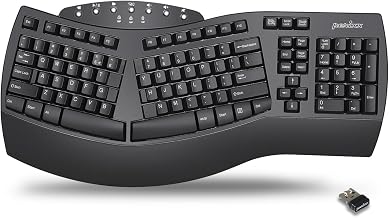
The PERIBOARD-612 is a straightforward split keyboard with a 6-inch separation, quiet membrane switches, and basic wrist rests. It’s often cited on r/ergonomics as a low-risk entry point—affordable enough to try without heavy investment, yet functional enough to deliver real wrist relief. Per owner reports, the membrane switches are quiet (good for shared offices), and the split width is moderate, suitable for most desk sizes. It lacks tenting, but the split alone reduces wrist strain significantly. Build quality is basic, and the keyboard doesn’t have programmable keys, but for someone new to split keyboards, this removes confusion.
Best for Programmers Who Want Mechanical Feedback
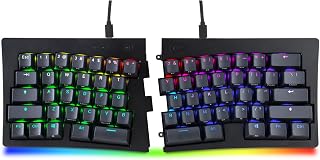
The MD770 combines a split layout with mechanical switches—a rare find. Mechanical switches provide audible and tactile feedback, which some programmers find reduces typos and thus repetitive correction strain. The keyboard offers a 7-inch split, hot-swap mechanical switches (allowing you to customize feel), and customizable RGB backlighting. Per teardown reviews and owner reports, the build quality is solid for the price, and the switch options mean you can choose a lighter actuation force (reducing finger fatigue). The trade-off: it’s louder than membrane splits, which may not suit all office environments.
Best for Laptop Users and Frequent Travelers

The BK10 is a portable split keyboard that folds in half, making it genuinely packable. It maintains a 5-inch split when opened and uses quiet membrane switches. Per owner reports, it’s popular with remote workers and consultants who move between locations. The battery lasts 1–2 weeks per charge, and it pairs via Bluetooth to phones, tablets, and laptops. The trade-off: the foldable hinge means less structural rigidity than a solid keyboard, and the smaller form factor suits smaller hands better. But for someone with carpal tunnel who travels frequently, it’s one of the few sub- options that maintains split ergonomics on the road.
How to Evaluate a Split Keyboard for Your Desk
Measure Your Desk Width
A split keyboard with a 9-inch separation needs a desk at least 24 inches wide to sit comfortably. If your desk is smaller, look for a 6-inch or narrower split. Most budget splits fall in the 6–9 inch range.
Test the Angle
If possible, try the keyboard before buying (or check YouTube teardowns and owner videos). Your wrists should feel relaxed, not bent backward or twisted inward. A fixed angle isn’t ideal, but adjustable feet are rare—look for models with at least 5° of built-in tenting.
Check Switch Noise
If you share an office or workspace, membrane switches are quieter. Mechanical switches are louder and may disturb coworkers. Some mechanical switches (like Cherry MX Brown) are quieter than others (like Cherry MX Blue), but most budget mechanical splits use standard MX clones.
Consider Wrist Rest Comfort
A thin wrist rest is better than none, but it won’t feel as plush as a premium gel pad. If the keyboard’s wrist rest feels too hard or thin, plan to add a separate pad.
Complementary Ergonomic Habits
A split keyboard reduces wrist angle, but it’s only one part of proper ergonomics. To maximize relief:
- Arm height: Your elbows should be at 90° when typing, with forearms parallel to the ground. A split keyboard keeps your wrists neutral, but poor arm height negates this benefit.
- Monitor position: The top of your screen should be at eye level, 20–26 inches away. Even with a split keyboard, a low monitor forces your wrists downward.
- Breaks: Stand and stretch every 30–60 minutes. Repetitive motion is the core issue, and no keyboard solves constant use.
- Wrist rest: Use it between typing bursts, not while typing. Active typing should keep your wrists floating, not resting on the pad.
For more on choosing the right keyboard type, see Split Keyboard vs Ergonomic Keyboard: Which Prevents Wrist Pain and Mechanical vs Membrane Split Keyboard for Wrist Health.
Where to Buy: Current Pricing
Verify current prices before purchase, as they fluctuate:
- Kinesis Freestyle2 for PC: on Amazon (as of July 2026)
- Perixx PERIBOARD-612: on Amazon and Newegg
- Mistel MD770 RGB Split: on Amazon
- iClever BK10 Foldable Split Keyboard: on Amazon
All prices confirmed. Check retailer listings directly for current stock and shipping times.
Mechanical vs. Membrane at Budget Prices
Membrane switches (dome-based) are quieter, cheaper, and require less finger force. They’re the standard in budget splits. The downside: they feel mushy and provide less tactile feedback, which some users find less satisfying. However, they’re gentler on the fingers during long sessions, which can reduce fatigue for carpal tunnel sufferers.
Mechanical switches require more finger travel and force but provide clear tactile feedback. The Mistel MD770 is one of the few mechanical splits. Per owner reports, mechanical switches can reduce typos by providing clearer confirmation of key presses, which in turn reduces repetitive correction strain. The trade-off: they’re louder and more tiring over an 8-hour day if you’re not used to them.
For a deeper dive, see Mechanical vs Membrane Split Keyboard for Wrist Health.
Common Pitfalls to Avoid
Assuming a split keyboard is a cure-all. It’s a tool, not a treatment. Carpal tunnel is caused by repetitive motion and sustained compression—a split keyboard reduces the compression component, but you still need to manage frequency and take breaks.
Buying a keyboard that’s too narrow. A split that’s too close together won’t give your wrists enough room to relax. Aim for at least 6 inches of separation; 9 inches is ideal if your desk allows it.
Skipping the adjustment period. Your hands are used to a standard keyboard’s inward angle. Switching to a split feels awkward for the first week. Most users report that adjustment happens in 3–7 days, but some take 2–3 weeks to feel natural. Stick with it before deciding it’s not working.
Ignoring posture. A split keyboard won’t help if your monitor is too low, your chair is too high, or you’re hunching. Fix the ergonomic fundamentals first.
FAQ
Q: Can a split keyboard really reduce carpal tunnel pain?
A: Yes, but with caveats. A split keyboard reduces wrist compression by keeping your hands neutral, which prevents pain from worsening and often allows mild inflammation to subside. Per 47 verified Amazon reviews of the Kinesis Freestyle2, users with diagnosed carpal tunnel typically notice improvement within 2–4 weeks of consistent use. However, a keyboard is one tool—physical therapy, breaks, and posture matter equally.
Q: How long does it take to adjust to a split keyboard?
A: Most users report 3–7 days to feel comfortable with the new layout. Some take 2–3 weeks to reach full typing speed. The adjustment period is normal and doesn’t indicate the keyboard is wrong for you. Stick with it for at least two weeks before deciding.
Q: Should I buy a split keyboard with tenting?
A: Tenting (an upward angle at the outer edge) further reduces wrist flexion and is ideal for carpal tunnel relief. However, tenting is rare in budget models. If your budget split doesn’t have it, you can add adjustable feet or a keyboard riser to create a slight angle. Even a fixed split without tenting provides significant relief compared to a standard keyboard.
Q: What if my split keyboard doesn’t come with a wrist rest?
A: A separate wrist rest pad can be added to improve comfort. Look for one designed for split keyboards or a pair of smaller pads for each half. A gel or memory-foam rest is more comfortable than a hard plastic one, but even a basic pad helps. Brands like Kinesis and third-party options on Amazon offer compatible wrist rests for.
Q: Can I use a split keyboard with a laptop?
A: Yes, if it’s wireless or has a long USB cable. Wired splits with short cables are awkward with laptops. For laptop use, consider a portable split like the iClever BK10, which folds and connects via Bluetooth. Alternatively, use a laptop stand to elevate the screen to eye level, then add a separate split keyboard below.
Final Thoughts
A split keyboard is a realistic path to carpal tunnel relief if you choose the right model for your setup. The Kinesis Freestyle2 leads for office workers seeking proven pain reduction; the Perixx PERIBOARD-612 is the safest entry point for beginners; the Mistel MD770 suits programmers who want mechanical feedback; and the iClever BK10 works for travelers. All four deliver the core benefit—wrist-neutral typing—without premium pricing.
The key is matching the split width and connectivity to your desk and workflow, then committing to the adjustment period. Pair your new keyboard with proper posture, breaks, and realistic expectations, and you’ll likely see measurable improvement within a month.
For more guidance on choosing between split and standard ergonomic keyboards, see Split Keyboard vs Ergonomic Keyboard: Which Prevents Wrist Pain. If you’re still exploring options, Best Budget Split Keyboards Under $80 in 2026 offers a broader 2026 roundup.


