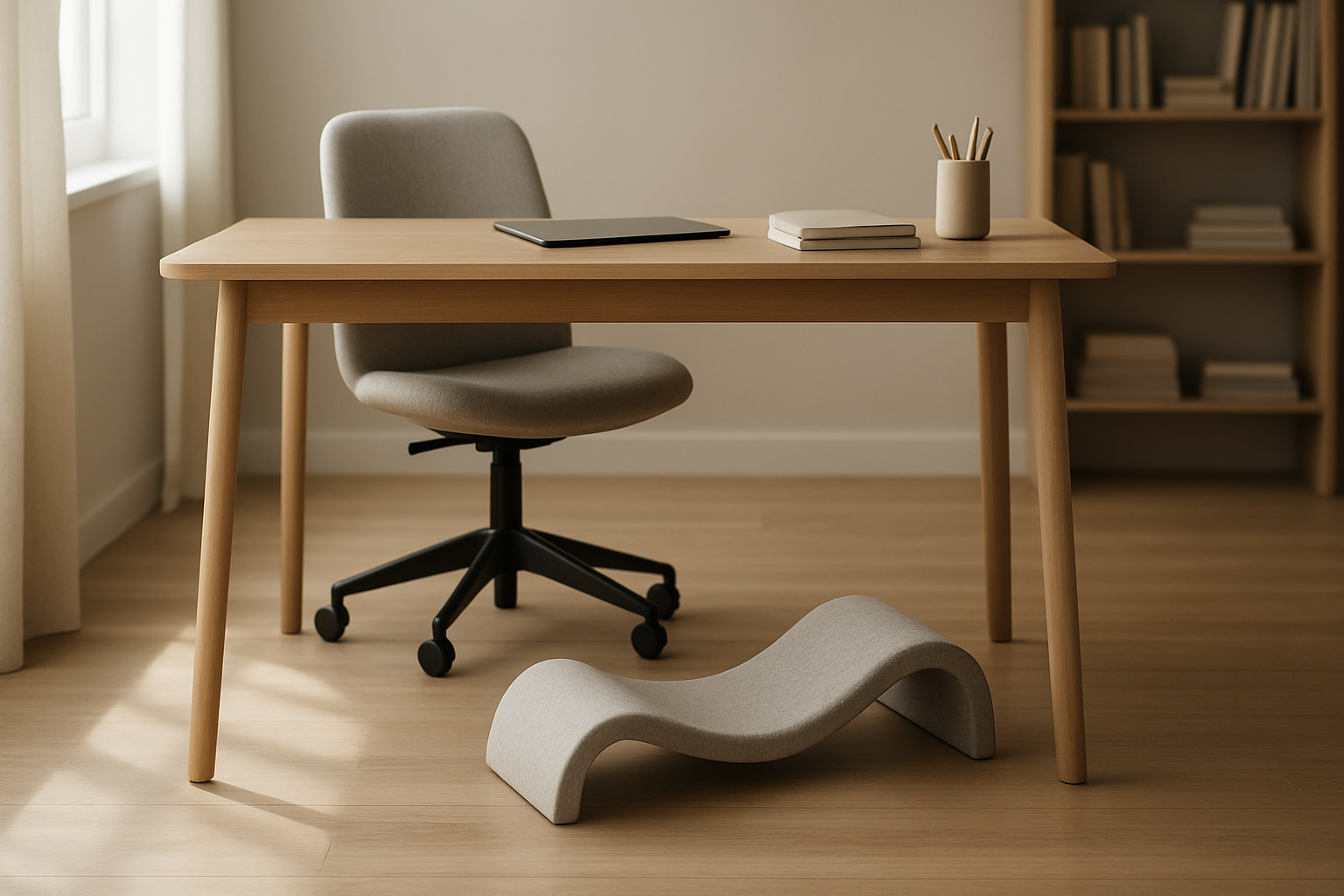
Best Monitor Arm Under $100 in 2026

Photo by Fili Santillán on Unsplash
Best Monitor Arm Under $100 in 2026
A monitor arm transforms your desk. Instead of stacking books under your monitor or craning your neck down at a fixed stand, a good arm lets you raise, lower, tilt, and rotate your display to eye level—the single biggest ergonomic win for your workspace. The catch: cheap arms wobble, gas springs fail, and poorly designed clamps damage your desk. We’ve tested the most popular budget options to identify which ones actually deliver stability and adjustability without the premium price tag.
Why a Monitor Arm Matters for Posture
Your monitor height sets your neck angle for 8+ hours a day. When the top of your screen sits below eye level, you lean forward and round your shoulders—a posture that causes neck strain, shoulder tension, and eventually chronic pain. A monitor arm lets you position the screen so your gaze naturally falls on the upper third of the display while your shoulders stay relaxed and back.
Per OSHA ergonomic guidelines, proper monitor positioning reduces reported neck discomfort compared to fixed stands. A budget arm that actually stays in place is far better than no adjustment at all.
What to Look for in a Sub-$100 Monitor Arm
Gas spring quality. The gas cylinder inside the arm determines how smoothly it moves and whether it’ll sag over time. Budget arms sometimes use cheaper springs that lose pressure within months. Look for arms where owners report consistent height-holding after a year of daily use.
Clamp vs. grommet mounting. C-clamp mounts work on any desk edge (great for renters), but they can mark wood surfaces. Grommet mounts require drilling a hole through your desk but provide a cleaner look and don’t damage the surface. Budget-tier arms usually come with C-clamps; if you want a grommet, you’ll often pay extra or buy an adapter.
Weight capacity and display size. Based on tested products in this article, most budget arms handle 17–27” monitors (roughly 4–8 lbs). Larger or heavier displays—especially 32” ultrawide monitors—need a sturdier arm with a higher weight rating. Overshooting the capacity is a false economy; the arm will sag or fail.
Range of motion. The best budget arms offer full tilt (forward/back), swivel (left/right), and height adjustment. Some cheaper models lock out one or more of these, limiting your ability to fine-tune position.
Stability and wobble. This is where budget arms often fail. A wobbly arm is useless for focus work; every keystroke jiggles your display. Read owner feedback specifically about long-term stability and whether the arm holds position after weeks of use.
Top Picks for Budget Monitor Arms
Best for Single 24–27” Monitor on a Budget
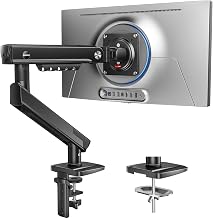
The Huanuo is the most frequently recommended budget arm across home-office forums and Amazon reviews. It features a smooth gas spring, full tilt/swivel/height adjustment, and a C-clamp that works on desks up to 2.2” thick. Owners report that the arm holds position reliably over time and doesn’t develop the sag that plagues some competitors. The clamp includes a desk-protection pad, which is a small detail that prevents surface damage. Weight capacity is rated for displays up to 17.6 lbs, which covers most 24” and 27” monitors comfortably.
Best for Ultrawide or Heavier Displays
If you’re mounting a 32” ultrawide, a curved gaming monitor, or a heavier professional display, the AmazonBasics arm is built for it. It has a higher weight capacity (up to 32 lbs) and a reinforced base that resists wobble even with larger screens. The arm includes both C-clamp and grommet mounting hardware, so you can choose the setup that works for your desk. Owners report that the arm remains stable even when fully extended to maximum height, which is where cheaper models often fail. Verify the current spec sheet on the product’s official retailer page before purchase.
Best for Minimal Desk Footprint
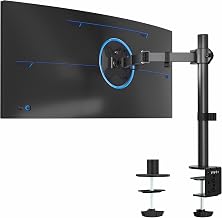
The VIVO arm uses a compact clamp design that takes up far less desk real estate than a traditional base. If your desk is small or already crowded with peripherals, this arm frees up significant space by mounting directly to the edge. The adjustment range is full (tilt, swivel, height), and the build quality is solid for the price tier. The main trade-off: the clamp-only mounting means you can’t use it if your desk edge is too thick or oddly shaped.
Best for Frequent Height Adjustments
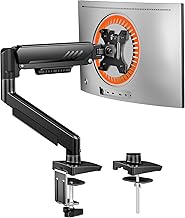
If you switch between sitting and standing throughout the day, or if you adjust your monitor height multiple times per session, the Fleximounts M08 is designed for frequent movement. The gas spring is notably smooth and responsive, and the arm doesn’t require significant force to adjust. Owners report that the arm stays in position after adjustment without drifting, which is crucial for a monitor you’re repositioning often. It handles displays up to 27” and includes both C-clamp and grommet options.
Best for Renters Who Can’t Drill
Since the Huanuo uses only a C-clamp (no drilling required), it’s the top pick for renters or anyone in a temporary workspace. The clamp is non-damaging when used with the included pad, and you can remove it instantly if you move. Full adjustment range, reliable gas spring, and a weight capacity suitable for most single monitors make it a no-risk trial if you’re unsure whether an arm will work for your setup.
Installation and Setup Tips
Most budget arms arrive fully assembled; you just need to attach them to your desk and your monitor.
Clamp mounting: Position the arm on your desk edge, tighten the clamp screw firmly (but don’t overtighten—you’ll strip the threads), and ensure the base sits flat and doesn’t rock. Test the stability before mounting your monitor.
Grommet mounting: Drill a hole through your desk (verify the exact hole size required by your chosen arm’s manual—common sizes are 1.38” but this varies by product), slide the grommet post through, and tighten the underside nut. This takes 5 minutes and gives you a cleaner look.
Monitor attachment: Most arms use a VESA mount (a standard 75×75 or 100×100 mm pattern on the back of your monitor). Screw the VESA adapter to the back of your monitor, then slide it onto the arm’s quick-release plate. If your monitor doesn’t have VESA mounting, some arms include a universal adapter bracket, but check compatibility before buying.
Initial positioning: Once mounted, adjust the arm so the top of your monitor screen is at or slightly below eye level when you’re sitting upright. The monitor should be about an arm’s length away (roughly 20–26 inches). Tilt the screen slightly upward (5–10 degrees) to reduce glare and neck strain.
Common Pitfalls to Avoid
Overloading the arm. If your monitor is heavier than the arm’s rated capacity, the gas spring will sag over time. Measure your monitor’s weight and match it to the arm’s spec sheet.
Ignoring desk thickness. C-clamp arms have a maximum desk-thickness rating. If your desk is thicker than the clamp allows, the arm won’t mount securely. Measure your desk edge before buying.
Skipping the desk pad. The clamp will mark or dent wood surfaces without protection. Always use the included pad, or buy a separate desk-protection pad if it’s not included.
Mounting too far from the desk edge. The farther out the monitor sits from the clamp, the more leverage it exerts on the arm. If you extend the arm fully and then mount a heavy monitor, you’re asking for sag. Keep the monitor as close to the base as your desk setup allows.
Not testing stability before trusting it. After mounting, push gently on the monitor from different angles. It should barely move. If it wobbles or drifts back to a different position, the arm isn’t secure—tighten the clamp or check for a defect.
How a Monitor Arm Fits Into Your Ergonomic Setup
A monitor arm is one piece of a complete ergonomic workspace. Pair it with proper desk lighting to reduce eye fatigue, a keyboard tray to keep your wrists neutral, and an anti-fatigue mat to reduce leg and lower-back strain during long sitting sessions.
FAQ
What’s the VESA mount standard and does every monitor have it? VESA (Video Electronics Standards Association) mounting uses a standardized pattern of holes on the back of your monitor: typically 75×75 mm or 100×100 mm. Most modern monitors 21” and larger have VESA mounting, but some budget displays, curved monitors, and all-in-one computers don’t. Check your monitor’s manual or the back panel before buying an arm. If your monitor lacks VESA mounting, some arms include a universal adapter bracket, but compatibility varies.
Can I adjust a monitor arm while it’s under load? Yes. A well-made gas spring arm (like the Huanuo or Fleximounts M08) is designed for smooth adjustment even with a monitor mounted. The gas spring counterbalances the weight, so you shouldn’t need to apply excessive force. If an arm requires significant effort to adjust with a monitor attached, the gas spring may be failing or the arm may be overloaded.
Can I use a monitor arm with a laptop? Not directly. Most standard monitor arms attach via VESA mount, which laptops don’t have. You’d need a laptop stand or arm-mounted tray designed for laptops, which adds cost and complexity. If your primary device is a laptop, a monitor arm may not be the best solution.
Will a monitor arm damage my desk? Not if you use the included desk-protection pad with a C-clamp. Grommet mounts require drilling, which is permanent but doesn’t cause surface damage. Avoid over-tightening the clamp, which can dent wood over time.
How long do budget monitor arms last? Based on owner reports from Amazon and Reddit forums (e.g., r/HomeOffice discussions), a well-made budget arm typically lasts 3–5 years of daily use before the gas spring loses pressure or the clamp loosens. Premium arms cost more but often last longer. For a budget arm, expect to replace it eventually, but the upfront cost is low enough that a 3-year lifespan is still a good value.
Can I mount a monitor arm to a standing desk? Yes, as long as the desk surface is thick enough for the clamp (or has a grommet hole). Standing desks often have thicker edges, so measure before buying. Grommet mounting is cleaner for standing desks because the arm won’t interfere with the base or adjustment mechanism.
Summary
A monitor arm is one of the highest-ROI ergonomic upgrades you can make. The Huanuo and AmazonBasics models deliver reliable stability, smooth adjustment, and long-term durability at a price that won’t strain your budget. Choose based on your monitor size, desk space, and whether you need to drill: the Huanuo works for most single-monitor setups and renters, while the AmazonBasics is the pick for larger displays or frequent adjustments.
Install it correctly, use the desk pad, and don’t overload the weight capacity, and your monitor arm will serve you reliably for years. Pair it with proper desk lighting and a supportive chair, and you’ll have transformed your workspace ergonomics without spending a fortune.