Single Monitor Arm for Dual Monitors on a Budget

Photo by Fili Santillán on Unsplash
Single Monitor Arm for Dual Monitors on a Budget
Most people assume you need a dedicated dual-monitor arm to run two screens. That’s not always true. A single, heavy-duty monitor arm can hold two monitors if they’re balanced correctly and within the arm’s weight limit—and you can do it for less than a dedicated dual-arm setup. This guide walks you through when it works, what to watch for, and which budget-friendly options actually deliver.
When a Single Arm Can Hold Two Monitors
A single monitor arm works for dual-monitor duty under three conditions:
-
Combined weight is within the arm’s rating. Most budget arms support 4–8 kg (roughly 9–18 lbs). Check your monitors’ weights on the spec sheet. Two lightweight 24-inch IPS monitors often total 10–12 lbs; two 27-inch gaming monitors might hit 16–20 lbs. Exceeding the rated load causes arm sag, drift, and potential failure.
-
Your monitors have VESA mounts. Both screens need standard VESA mounting holes (usually 75×75 mm or 100×100 mm). If either monitor lacks VESA, you cannot mount it directly to an arm. VESA Mount Monitor Arm Compatibility: What You Need to Know
-
The arm’s mounting plate can accommodate a dual-monitor bracket. A single arm comes with one VESA plate. To hold two monitors, you need a secondary bracket (sold separately or bundled) that attaches to that plate and spreads the load. Some arms support this; others don’t.
When it doesn’t work: If your monitors are heavy, asymmetrical in size, or lack VESA, a single arm will strain and fail. A dedicated dual-arm is safer and more stable in those cases.
The Weight-Balance Problem
The biggest gotcha: a single arm is a lever. When you mount two monitors side-by-side on one plate, the heavier monitor tips the balance. If your left monitor weighs 6 lbs and your right weighs 8 lbs, the arm’s gas spring has to work harder on the heavy side. Over weeks, this causes:
- Uneven sag — the heavy side drifts downward.
- Tilting — the arm rotates, angling one monitor away from your eye line.
- Premature wear — the gas spring weakens faster under imbalanced load.
Solution: Choose two monitors of the same weight and model if possible. If you must mix sizes, a dedicated dual-arm lets each monitor have its own spring, balancing independently.
Budget Single-Arm Options for Two Monitors
The Compact Single-Arm Route (Under Budget-Tier)
Budget-tier single arms (like the AmazonBasics and HUANUO lines) cost less than a dedicated dual-arm but require discipline: you mount both monitors on one plate using a secondary bracket. This works if:
- Both monitors are under 7 lbs each.
- You don’t adjust them constantly (each move shifts the balance).
- You accept minor sag after 6–12 months of daily use.
Trade-off: You save money upfront but may need to replace the arm sooner, or upgrade to a dual-arm later.
The Heavy-Duty Single-Arm Approach (Mid-Tier)
Mid-tier single arms (like Ergotron LX or Humanscale M8) cost more but handle dual-monitor duty better. These arms support up to 15 lbs and feature stiffer gas springs. Some models also ship with a secondary bracket designed for two monitors. Users report these arms maintain alignment for 2–3 years under constant dual-monitor use.
Trade-off: Higher upfront cost, but better longevity and less maintenance.
Installation and Space Considerations
Clamp vs. Grommet Base
Budget single arms come in two base styles:
- C-clamp: Tightens to your desk edge. Strongest hold, zero footprint on the desk surface. Works on desks 0.6–3.2 inches thick. Over-tightening can dent thin desks.
- Grommet base: Slides through a hole in your desk. Requires a pre-drilled hole (or you drill one). More forgiving on thin surfaces but uses desk real estate. Renters often prefer this to avoid clamp marks.
Desk Space Math
A single-arm dual-monitor setup saves desk space compared to two monitor stands, but not as much as a dedicated dual-arm. A single arm’s footprint is roughly 4–6 inches wide at the base; two monitors hanging from one plate extend 24–30 inches across. If your desk is under 48 inches wide, you’ll feel crowded. How to Install a Monitor Arm on a Small Desk
Cable Management and Aesthetics
One arm = one cable run (power, USB, HDMI/DisplayPort). With two monitors on one arm, you’ll route cables from both screens down the same pole or bracket. Budget arms often lack built-in cable clips; you’ll need velcro straps or adhesive clips. The MOUNTUP arm includes cable clips, making setup cleaner. Other budget picks require aftermarket velcro.
Per user reports, the cleaner look is a selling point—especially in small home offices where visual clutter affects focus.
Compatibility Checklist Before You Buy
Before ordering a budget single arm for dual monitors, work through this checklist:
- [ ] Check both monitors’ weight (spec sheet or manual).
- [ ] Confirm combined weight is ≤ 80% of the arm’s rated capacity.
- [ ] Verify both monitors have VESA 75×75 or 100×100 mounts.
- [ ] Look for a secondary bracket or dual-monitor plate (ask the seller if unsure).
- [ ] Measure your desk thickness and edge depth for clamp clearance.
- [ ] Test the arm’s range of motion—can it rotate, tilt, and swivel to your liking?
Decision rule: If any box is unchecked or your combined monitor weight exceeds 80% of the arm’s capacity, skip single-arm options and choose a dedicated dual-arm instead.
Top Picks for Budget Single Arms Handling Dual Monitors
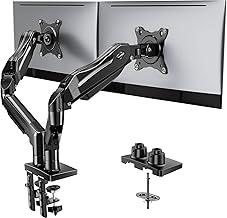
Designed to hold two monitors on one pole. Per owner reviews, it handles two 24-inch monitors reliably. The independent articulation on each monitor lets you adjust height and angle separately. Weight capacity is mid-budget-tier; best for monitors under 7 lbs each. Clamp base; no grommet option.
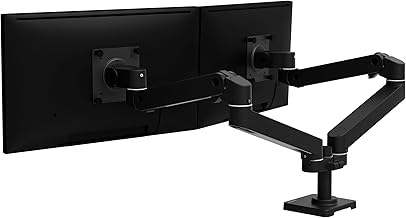
Premium single arm with a dedicated dual-monitor bracket. Supports up to 15 lbs combined. Smoother motion and better spring tension than budget rivals. Users report 2+ years of daily use without sag. Higher price but worth it if you plan to keep the setup long-term.
MOUNTUP Monitor Arm with Grommet
Budget-friendly single arm with a grommet base option. Supports up to 8 lbs per monitor. Ideal for renters or desks you don’t want to clamp. A secondary bracket (sold separately) lets you mount two monitors, though the arm is optimized for one. Includes built-in cable clips.
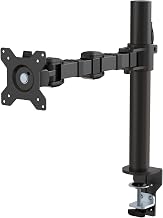
Entry-level single arm, compact and lightweight. Supports up to 7 lbs. Minimalist design fits tight spaces. Per reviews, it’s best for one monitor; dual-monitor duty is possible but requires careful weight balance and frequent micro-adjustments.
FAQ
Q: Can I put a 27-inch and a 24-inch monitor on one budget arm?
A: Technically yes, if combined weight is within the arm’s limit. However, the 27-inch (usually heavier) will cause the arm to tilt toward that side. A dedicated dual-arm or two separate single arms is more stable and less frustrating.
Q: What if my monitors don’t have VESA mounts?
A: You cannot use an arm. You’ll need a monitor stand or a separate arm for each monitor. Some budget stands accept non-VESA monitors via adhesive or bracket adapters, but these are less stable.
Q: Is a single arm cheaper than a dual-arm?
A: Yes, typically 20–40% cheaper. A budget single arm costs less; a dedicated budget dual-arm is a bit more. However, if you later need to replace the single arm due to sag, the total cost may exceed buying a dual-arm upfront.
Q: How do I prevent sag with a single arm holding two monitors?
A: Choose monitors of equal weight, use a secondary bracket rated for dual monitors, and avoid frequent adjustments. If sag occurs, you may need to replace the arm or upgrade to a dual-arm setup.
Q: Can I use a single arm on a standing desk?
A: Yes, as long as the desk is thick enough for the clamp (or has a grommet hole). Standing desks move, so a dual-arm or very sturdy single arm is preferable to avoid wobble. Heavier arms perform better on electric standing desks.
The Verdict
A single budget monitor arm can handle two monitors, but it’s a compromise. You save money and desk space versus two separate arms, but you sacrifice stability, longevity, and ease of adjustment compared to a dedicated dual-arm. It works best if both monitors are identical, lightweight, and you’re willing to accept minor sag after a year or two.
If your monitors are heavy, mismatched, or you plan to use this setup for 3+ years, invest in a dedicated dual-arm instead. Best Monitor Arms Under $100 for 2026 and Dual Monitor Arm on a Budget: Top Picks Under $150 have solid options in the same price range.
For a complete budget home-office overhaul, Budget Home Office Ergonomics Checklist: Complete Setup Under $500 walks you through monitor placement, keyboard, and chair all at once.


