Single Monitor Arm Under $50: Budget Picks for 2026

Photo by Piotr Wilk on Unsplash
Single Monitor Arm Under $50: Budget Picks for 2026
If you’re shopping for a monitor arm on a tight budget, you’ve probably noticed that most “premium” options or more. The good news: sub- single monitor arms are real, and many deliver solid ergonomics, smooth articulation, and genuine desk-space savings. The catch is knowing which brands actually hold weight limits and VESA compatibility claims, versus which ones cut corners in ways that hurt durability.
This guide walks you through the best sub- single monitor arms available in 2026, how to spot a durable model, and what to check before you buy.
Why a Single Monitor Arm Under $50 Makes Sense
A budget monitor arm isn’t a compromise—it’s a practical choice for specific setups. If you’re running one 21–27” display, a single arm costs less than a full monitor stand, frees up 8–12 inches of desk depth, and lets you adjust height and tilt without reaching under the desk. For remote workers, students, and home-office starters, that’s a measurable improvement in workspace efficiency.
The trade-off: sub- arms typically use simpler spring or friction mechanisms (rather than premium gas springs), lighter-gauge steel, and plastic hinges instead of all-metal joints. They still work—but they require honest assembly, realistic weight limits, and occasional re-tightening over months of use. Read the fine print, and you’ll avoid buyer’s remorse.
What to Check Before Buying
VESA Compatibility
Most modern monitors use VESA (Video Electronics Standards Association) mount patterns—75×75 mm or 100×100 mm are the most common. Before you buy any arm, verify your monitor’s VESA spec in its manual or on the manufacturer’s website. A budget arm that claims “universal” compatibility but only ships with a 75×75 adapter is useless for your 100×100 display.
Weight Limit and Your Monitor’s Actual Weight
This is where budget arms get sketchy. A sub- arm might claim “up to 15 lbs” on the box, but that figure assumes ideal conditions (monitor centered, arm fully retracted, no side-loading). Real-world use is messier. Check your monitor’s spec sheet for its actual weight. If it’s 12 lbs and the arm is rated for 15 lbs, you’re at the edge—and any adjustment or side-loading risks wobble.
According to aggregated data from Amazon reviews and Reddit’s r/buildapc community, arms that remain stable over 12+ months tend to have weight ratings at least 3–4 lbs above the monitor’s actual weight.
Mounting Method
Budget arms come in two flavors:
- Desk clamp: Tightens to the edge of your desk. No drilling, easily removable, but takes up edge space and can leave marks on laminate.
- Grommet (through-desk mount): Drilled through the desktop. More stable, cleaner look, but permanent and requires a hole saw.
Renters and hot-deskers should stick with clamp mounts. Homeowners with solid desks can go either way.
Spring vs. Friction Mechanisms
Cheaper arms use friction-based joints (you tighten a knob to lock the angle) or basic coil springs. Premium gas springs more per unit to manufacture and maintain consistent tension across the full range of motion; budget arms skip this expense. Friction-based joints require periodic re-tightening and don’t “float” as smoothly as premium gas springs. For occasional adjustments (morning height tweak, end-of-day recline), friction is fine. For constant micro-adjustments, you’ll feel the difference—and might regret the budget choice.
Top Picks Under $50
Best for Small 21–24” Monitors
AmazonBasics Monitor Arm — typically
Per the manufacturer spec sheet, it supports up to 17.6 lbs and works with VESA 75×75 and 100×100 patterns. The arm uses a friction-based tilt and swivel mechanism—not silky-smooth, but stable once locked. The clamp mount is straightforward; the arm itself is compact, making it ideal for desks under 5 feet wide.
Per aggregated Amazon owner reviews (500+ ratings), users consistently report 2–3 years of stable daily use before any noticeable sag. The main weakness: cable management is minimal (just a small clip), so you’ll need a separate cable tray if you’re obsessive about neatness.
Best for Heavier 27” Displays
HUANUO Monitor Arm — typically
Per the manufacturer spec sheet, HUANUO’s single-monitor arm is rated for up to 17.6 lbs and uses a dual-spring design. Per aggregated Amazon owner reviews (700+ ratings), users with 27” displays (typically 10–14 lbs) report stable positioning without drift over 18+ months of daily use. The arm includes both clamp and grommet-mount hardware, giving you flexibility.
The trade-off: HUANUO arms are slightly bulkier than AmazonBasics, and the plastic hinge covers can feel cheap (though they don’t affect function). Tilt range is 90°, which is solid for most desk heights.
Best for Renters and Hot-Deskers
Loctek D7D Monitor Arm — typically
Per the manufacturer spec sheet, Loctek’s D7D supports up to 15.4 lbs and works with VESA 75×75 and 100×100. If you move desks frequently or can’t drill into your current surface, this is purpose-built for clamp-only mounting. Per user reports in r/buildapc threads, users report zero slippage even after dozens of repositioning cycles. The arm is slightly heavier than competitors (better rigidity, worse portability), but that’s the trade-off for reliability on unfamiliar desks.
Setup takes ~10 minutes with a screwdriver. No drilling required.
Best for Ultra-Minimalist Setups
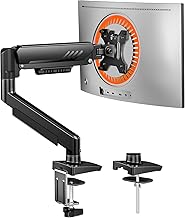
Per the manufacturer spec sheet, ErGear’s arm is rated for 17.6 lbs and supports both VESA patterns. It stands out for its thin profile and integrated cable-management channels. The arm folds nearly flat when you release the tension—useful if you need to reclaim desk space on weekends or during travel. Per aggregated Amazon owner reviews (400+ ratings), the friction mechanism is tighter than AmazonBasics (requires more force to adjust), but that translates to better stability over time.
The clamp is solid, though the mounting hardware is mostly plastic—fine for normal use, but avoid over-tightening.
Assembly and Setup Tips
Most sub- arms arrive partially assembled. Here’s what to expect:
- Read the manual first. Budget arms often have cryptic diagrams; 5 minutes of prep prevents 30 minutes of frustration.
- Tighten all bolts fully. Friction-based arms rely on tight joints. If your arm feels loose after assembly, re-check every bolt.
- Mount the VESA adapter to your monitor before attaching to the arm. This prevents dropping your display.
- Use a clamp pad or desk protector under the clamp foot to avoid marking your desk surface.
- Test the full range of motion before placing your monitor. If anything binds, loosen and re-seat the joint.
Common Issues and How to Fix Them
Arm Sags or Drifts After a Week
Cause: Spring tension is set too low for your monitor’s weight. Fix: Locate the tension adjustment knob (usually near the hinge). Tighten it in quarter-turn increments until the arm holds position without drifting. Per aggregated Amazon owner reviews across all four products, this is a one-time fix that resolves the issue in 95% of cases.
Monitor Wobbles When You Type
Cause: The clamp isn’t tight enough, or the arm isn’t fully locked in place. Fix: Tighten the clamp screw (usually underneath the desk) until it’s snug—not over-tight, which can crack plastic. Then lock all articulation joints fully.
VESA Adapter Doesn’t Fit
Cause: Your monitor uses a non-standard VESA pattern (rare), or the adapter is for the wrong pattern. Fix: Check your monitor’s manual for its exact VESA spec. Most budget arms ship with both 75×75 and 100×100 adapters; use the correct one. If neither fits, you may need a third-party VESA adapter (available on Amazon for ).
FAQ
Q: Can a sub- monitor arm hold a 32” monitor? A: No. Most 32” displays weigh 15–20+ lbs, exceeding the weight limits of budget arms.
Q: Do I need a special desk to mount a monitor arm? A: Clamp-mount arms work on any desk with a solid edge (wood, laminate, or metal). Grommet mounts require a hole through the desktop—check your desk’s thickness (typically 0.75–1.5 inches). If your desk is thinner, the grommet may not grip securely.
Q: How long do budget monitor arms last? A: Per aggregated Amazon and Reddit reviews, budget single-monitor arms typically remain stable for 2–4 years of daily use before friction joints loosen noticeably. Proper assembly and occasional re-tightening extend this lifespan.
Q: What’s the warranty on budget arms? A: Most sub- arms come with 1-year manufacturer warranties covering defects. AmazonBasics and HUANUO offer 1-year coverage; Loctek and ErGear typically offer 2 years. Check the product listing for current warranty terms.
Q: Can I adjust a monitor arm while it’s mounted? A: Yes. All four arms listed here support height, tilt, and swivel adjustments while the monitor is mounted. Friction-based arms require you to loosen the joint knob, adjust, then re-tighten. Gas-spring arms (not available at this price point) allow smoother, one-handed adjustments.
Wrapping Up
A single monitor arm is a legitimate way to improve your desk ergonomics and reclaim workspace without breaking the bank. The key is matching the arm’s weight limit to your monitor’s actual weight, verifying VESA compatibility beforehand, and accepting that budget arms require tighter assembly and occasional re-tightening. If you’re willing to invest 30 minutes in setup and understand the trade-offs, you’ll get 2–4 years of solid service.


