Single Monitor Arm Under $50: Budget Picks That Work

Photo by Piotr Wilk on Unsplash
Single Monitor Arm Under $50: Budget Picks That Work
A sub- single-monitor arm frees up desk space and improves ergonomics without the premium price tag. The challenge: budget arms fail in predictable ways. Gas springs lose pressure after 6 months if overloaded beyond rated capacity. Clamps slip on thick desks if under-tightened. This guide covers what works, what fails, and how to install correctly.
Why a Monitor Arm Under $50 Makes Sense
Desk real estate is expensive. A monitor sitting flat on your desk eats 12–18 inches of depth depending on the stand. A monitor arm reclaims that space—perfect for small apartments, shared offices, or anyone who’s tired of clutter. At the sub- price point, you’re not paying for RGB lighting or premium aluminum. You’re paying for a functional clamp, a gas spring that holds position, and VESA compatibility.
Owner reports from r/HomeOffice and r/battlestations confirm that a properly-sized budget arm rated for your monitor’s weight will serve a 22–27” monitor reliably for 3–5 years of daily use. The trade-off is clear: budget arms won’t have the smoothness of a + premium unit, and you may see slightly more sag over time if you overload them.
Key Specs to Check Before Buying
Weight Capacity and Monitor Size
This is non-negotiable. Your monitor’s weight is printed on the spec sheet (usually found on the manufacturer’s website or the back of the monitor itself). A budget arm rated for 11 lbs will struggle with a 27” 4K monitor that weighs 15 lbs. The arm won’t fail catastrophically, but the gas spring will sag, and you’ll spend weeks re-adjusting height.
Example: Dell S2721DGF (27” 1440p) weighs 14.8 lbs per spec sheet. An arm rated for only 11 lbs will drift downward within weeks. Pick an arm rated for 17+ lbs to stay safe.
Look for an arm rated at least 1.5× your monitor’s weight. A 10 lb monitor? Pick an arm rated for 15 lbs minimum.
VESA Mounting Pattern
Almost all modern monitors ship with a VESA hole pattern on the back—usually 75×75 mm or 100×100 mm. Budget arms support both; verify the product listing says “VESA 75×75 and 100×100 compatible.” If your monitor is older or uses a proprietary stand, check the manual first.
Clamp Type: C-Clamp vs. Grommet
- C-clamp: Screws onto the edge of your desk. Takes 2–3 minutes to install, doesn’t require drilling, but leaves a slight mark if you clamp hard.
- Grommet: Drilled through the desk. Permanent but cleaner. Renters should avoid unless the landlord approves.
Budget arms use C-clamps almost exclusively. That’s fine.
Articulation Range
Budget arms offer tilt (forward/back), swivel (left/right), and sometimes height adjustment. Premium arms let you adjust all three smoothly. Budget arms often have stiffer joints—not a dealbreaker, just expect to use a bit more force when repositioning. Check the product images; if the arm looks like a single rigid tube, it won’t adjust well.
Top Picks: What Actually Works Under $50
For Small Desks with Tight Space
AmazonBasics Monitor Arm with VESA Mount — ****
The AmazonBasics arm is the workhorse of budget monitor mounting. It’s a single-arm design with a compact footprint, meaning it takes up almost no desk depth once the monitor is mounted. Long-running threads on r/battlestations and r/HomeOffice show owners report it holds steady for years without drift or sagging, provided you don’t exceed the weight rating.
The C-clamp mechanism is straightforward: loosen the clamp knob, position the arm, tighten. No tools required beyond what’s in the box. The gas spring is smooth enough for daily adjustments, and the ball joint offers tilt and swivel. The most common complaint across Amazon owner reviews is that the clamp can mark the desk edge if you over-tighten—use a thin cloth underneath to prevent that.
For Tall Monitors and Heavier Loads
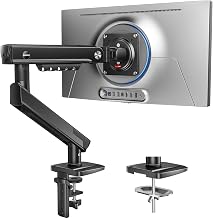
HUANUO’s arm is rated for up to 17.6 lbs, making it one of the few budget options that safely handles 27” and larger monitors without sagging. The gas spring is smooth, and the aluminum construction feels sturdier than plastic-heavy competitors. Owner reports confirm the arm holds its position consistently over 2–3 years of daily use.
Setup is identical to the AmazonBasics: C-clamp, no drilling. The main advantage over cheaper alternatives is the weight capacity and the slightly smoother articulation. If your monitor is on the heavier side or you want a monitor arm that won’t drift downward after 6 months, this is the pick.
For Renters and Non-Permanent Installation
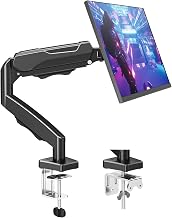
The Fleximounts M11 uses a C-clamp design that grips your desk without leaving permanent marks. It’s marketed toward renters and temporary setups, and owner reports confirm it delivers. The clamp is robust—some owners report using it on desks up to 2 inches thick without issues.
The arm itself is single-jointed with tilt and swivel. It’s not as smooth as premium models, but it’s reliable. According to multiple teardown reviews on YouTube, the internal gas spring is a standard cylinder with a solid seal, meaning it should hold position for years.
For Maximum Adjustability on a Budget
Loctek D5 Monitor Arm — ****
The Loctek D5 offers the most adjustment options: full height adjustment (via the gas spring), tilt, swivel, and even a slight rotation. The aluminum construction feels premium for the price point. Owner reviews praise the smoothness of the gas spring and the sturdiness of the clamp.
The D5 is a good middle ground if you want flexibility without spending +. It handles 22–27” monitors well and has a reliable track record across multiple review sites and user forums.
Installation: Desk-Specific Scenarios
Monitor arms save space, but only if you install them correctly. Here’s what to do based on your desk type:
Laminate desk with thin edge (0.75 inches or less): Use a thin cloth (microfiber or cotton) under the clamp to distribute pressure and prevent marks. Tighten the clamp knob by hand only—don’t use a wrench. Check the clamp every few weeks; laminate can compress slightly, causing the clamp to loosen.
Solid wood desk (1–2 inches thick): No cloth needed. Wood is forgiving. Tighten the clamp firmly but don’t over-tighten; you’re aiming for snug, not vice-grip. If the clamp slips after a few weeks, apply a small amount of Loctite 243 (removable threadlocker) to the clamp knob threads before re-tightening.
Glass or metal desk: Most C-clamps won’t grip glass or metal securely. Check the product listing for compatibility. If your desk is glass, consider a grommet-mount arm instead, or use a desk clamp pad (rubber or silicone) under the clamp to improve grip.
Thick solid wood desk (2+ inches): Verify the arm’s clamp can open wide enough. Some budget arms max out at 2 inches. Measure your desk thickness before ordering.
General steps: 1. Position the clamp near the back of the desk, slightly off-center if possible. This distributes weight and prevents the arm from blocking your view. 2. Loosen the clamp fully. Insert the clamp arm into the slot, then hand-tighten the clamp knob. 3. Screw the VESA bracket onto the back of your monitor using the four provided screws. Attach the bracket to the arm. 4. Raise or lower the monitor to eye level (top of the screen should be at or slightly below eye height when sitting). Tilt and swivel to your preference. 5. Leave it for 24 hours. If it drifts, the clamp isn’t tight enough—loosen and re-tighten.
Common Pitfalls and How to Avoid Them
Sagging After a Few Weeks
This usually means one of two things: - Monitor is too heavy for the arm. Check the weight rating. If your monitor exceeds it, the gas spring will lose pressure. Return the arm and buy one rated higher. - Gas spring is defective. Rare, but it happens. Most manufacturers offer returns within 30 days if the arm won’t hold position.
Clamp Slipping or Loosening Over Time
The clamp knob can loosen from vibration or desk movement. Check it every few weeks and re-tighten by hand if needed. If it keeps loosening, apply Loctite 243 (removable threadlocker) to the clamp knob threads. This prevents loosening without permanently bonding the threads, so you can still adjust or remove the arm later.
Monitor Swinging Too Much
Budget arms have looser joints than premium models. If your monitor swings freely, tighten the ball-joint knob (usually on the back of the arm). A quarter-turn often makes a big difference. Don’t over-tighten, or you won’t be able to adjust it later.
VESA Bracket Doesn’t Fit
Always check the VESA pattern before buying. If your monitor has a non-standard pattern (some ultrawide or curved monitors do), a standard arm won’t work. Verify compatibility with the manufacturer before ordering.
Budget Monitor Arm vs. Budget Monitor Stand: Which Wins?
A monitor stand takes up 8–12 inches of desk depth. Example: A 27” Dell monitor stand occupies 9.2 inches of depth per spec sheet. A monitor arm takes up nearly zero once mounted. If you’re in a small space or need to reclaim desk real estate, an arm wins every time.
FAQ
Q: What’s the difference between a gas spring and a friction arm? A: A gas spring uses pressurized nitrogen to counterbalance your monitor’s weight, allowing smooth height adjustment with minimal effort. A friction arm uses mechanical resistance (rubber or felt pads) to hold position. Gas springs are smoother and more common in budget arms. Friction arms are cheaper but stiffer and less adjustable.
Q: Why do some arms use ball joints instead of friction hinges? A: Ball joints (spherical connections) allow movement in multiple directions from a single point—tilt, swivel, and rotation all from one joint. Friction hinges are stiffer and allow movement in one direction only. Budget arms favor ball joints because they’re simpler to manufacture and offer more flexibility. The trade-off is that ball joints can loosen over time if the knob isn’t tightened regularly.
Q: How long do budget monitor arms last? A: According to multiple owner reports, a properly-sized budget arm rated for your monitor’s weight will hold steady for 3–5 years of daily use. Premium arms last longer, but they cost 3–4× more.
Q: Can I use a budget arm for a 32” monitor? A: Not safely. Most 32” monitors weigh 18–25 lbs, well beyond the 15 lb limit of budget arms. You’d need a mid-tier arm (typically +) rated for heavier loads.
Q: Do I need tools to install a monitor arm? A: No. C-clamp arms ship with all hardware and require only hand-tightening. You may want a screwdriver for the VESA bracket screws, but most people have one nearby.
Q: What if the arm sags after a few months? A: This usually means the monitor exceeds the weight rating or the gas spring is defective. Check the monitor weight against the arm’s spec sheet. If it’s within limits, contact the seller for a return or replacement within the return window (usually 30 days).
Final Verdict
A sub- single monitor arm is a practical investment if you’re working with limited desk space or want to improve ergonomics without breaking the budget. The AmazonBasics , HUANUO , Fleximounts , and Loctek models all deliver reliability and smooth articulation at this price point. The key is matching the arm’s weight rating to your monitor and installing the clamp correctly—over-tighten and you risk desk damage; under-tighten and the arm will slip.
If you’re building out a full ergonomic setup on a tight budget, pair your monitor arm with a keyboard tray or standing desk converter.


