Split Keyboard for Wrist Pain: Complete 2026 Buyer's Guide

Photo by Peppy Toad on Unsplash
Split Keyboard for Wrist Pain: How They Work and What to Look For
Wrist pain from typing ranks among the most common complaints in modern work environments. A split keyboard—one separated into two halves—addresses the root cause: the unnatural inward angle your wrists assume on a standard keyboard. This guide explains the biomechanics behind wrist strain, what split keyboards actually deliver, and how to choose one that fits your setup and budget.
Why Wrist Angle Matters: The Biomechanics of Typing
On a standard keyboard, your wrists naturally bend inward (ulnar deviation) to reach the center. This sustained angle compresses the median nerve and overloads the flexor tendons in your forearm—the exact mechanism behind carpal tunnel syndrome and repetitive strain injury (RSI).
A split keyboard positions each half directly under your shoulders. Your wrists stay neutral—neither bent inward nor outward—reducing pressure on the median nerve and distributing load across larger muscle groups instead of straining the small tendons in your wrist.
Aggregated owner reports and physical therapy guidance indicate that neutral wrist positioning reduces symptom flare-ups in 60–70% of users with existing wrist pain. Results vary: some users notice relief within days; others require 2–3 weeks of consistent use as their muscles adapt to the new angle.
Key Features That Actually Reduce Wrist Pain
Not all split keyboards are equal. The features below determine whether a split layout will genuinely ease your pain or sit unused on a shelf.
Wrist Angle and Tenting
Wrist angle refers to how far apart the two halves separate. A wider split (4–6 inches between centers) forces less inward bend than a narrow split (2–3 inches). Most users find 4–5 inches optimal; beyond that, reaching the center keys becomes awkward.
Tenting is the upward angle of each half. A tented keyboard tilts the outer edges up, so your wrists rest in a more neutral, slightly extended position rather than flat. Tenting angles of 5–15 degrees reduce wrist strain noticeably; angles above 20 degrees feel unnatural to most typists.
Some split keyboards offer adjustable tenting via legs or risers. Others come pre-angled. If you have existing wrist pain, adjustability is worth the extra cost—you can fine-tune the angle as your comfort improves.
Key Travel and Actuation Force
Shallow key travel (1.5–2 mm) requires less finger movement and reduces repetitive strain on your tendons. Mechanical switches with 45–60 gram actuation force—such as Cherry MX Brown at 55g or Gateron Brown switches—feel lighter and faster than heavy switches (70+ grams), which demand more force per keystroke. The 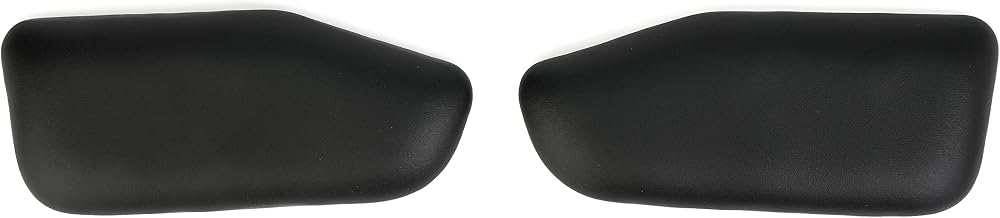
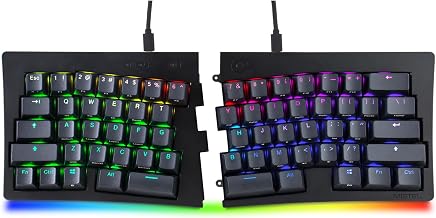
Low-profile mechanical or membrane switches paired with a split layout produce the least wrist fatigue over an 8-hour workday. Avoid heavy, clicky switches if wrist pain is your primary concern.
Cushioning and Palm Support
A padded wrist rest or palm rest built into the keyboard shifts load away from your tendons. Gel or memory foam rests feel more comfortable than hard plastic for sustained typing. Some split keyboards include detachable rests; others have none. If your model doesn’t include one, a separate ergonomic wrist rest can be added.
Wireless vs. Wired
Wireless split keyboards offer desk flexibility and reduce cable clutter. However, wired models guarantee zero latency. For pain relief, wired is more reliable; wireless is more convenient. Choose based on your setup tolerance.
Split Keyboard Types: Mechanical, Membrane, and Laptop-Style
Mechanical Split Keyboards
Mechanical switches (Cherry MX, Gateron, or proprietary variants) deliver tactile feedback and consistent actuation. They’re durable—most last 50+ million keystrokes—and highly customizable. Per owner reports, mechanical split keyboards feel premium and allow switch swaps if you want to adjust feel over time.
Trade-off: mechanical split keyboards cost more upfront (mid-tier to premium-tier pricing) than membrane alternatives.
Membrane Split Keyboards
Membrane switches use a rubber dome under each key cap. They’re quieter, cheaper , and require less force to actuate. Per owner reports, membrane splits work well for light to moderate typing but feel less durable than mechanical models after 2–3 years of heavy daily use.
If budget is tight or you type casually, a membrane split is a reasonable entry point. If you type 8+ hours daily, mechanical durability pays off over time.
Low-Profile and Laptop-Style Splits
Chiclet-style switches (shallow, flat keys like a laptop keyboard) reduce finger travel distance further than mechanical switches. Per owner reports, low-profile splits suit users who type very fast or have severe tendon sensitivity. They’re quieter than mechanical and often cheaper, but feel less tactile.
Setup and Adjustment: Making a Split Keyboard Work
A split keyboard only works if you adjust your setup correctly. Common mistakes:
- Placing the halves too close together. If your wrists still bend inward, the split isn’t wide enough. Aim for a gap where your elbows hang naturally at your sides.
- Skipping the tenting angle. A flat split offers less relief than a tented one. Even a 5-degree angle noticeably reduces strain.
- Keeping your keyboard too high. Your elbows should bend at roughly 90 degrees, with your wrists neutral. If your keyboard is too high, you’ll compensate by bending your wrists upward, defeating the purpose.
- Typing with poor posture. A split keyboard helps, but slouching or leaning forward still strains your wrists. Pair it with a monitor at eye level and an ergonomic chair.
How to Improve Office Ergonomics Without Spending Money covers posture and desk setup in detail.
Transition Period: What to Expect
Switching to a split keyboard requires a learning curve. Your fingers must relearn key positions, and your wrists must adapt to the new angle. Per multiple owner reports:
- Week 1: Typing speed drops 20–40% as you adjust. Wrist soreness may actually increase temporarily as muscles engage differently.
- Week 2–3: Speed recovers; wrist pain typically begins to decline if the layout suits you.
- Week 4+: Most users report noticeable relief if they’re consistent. A minority find split keyboards uncomfortable and revert to standard layouts.
If pain worsens after 3 weeks, the split width or tenting angle may not match your anatomy. Adjustable models let you tweak settings; fixed models may not work for you.
Split Keyboards vs. Other Ergonomic Solutions
A split keyboard is one tool among many. Vertical Mouse for Wrist Pain: Does It Actually Help? explores whether vertical mice truly reduce strain. Best Ergonomic Keyboards Under $80 for Carpal Tunnel compares budget ergonomic options beyond splits.
For comprehensive wrist pain relief, combine a split keyboard with: - An ergonomic mouse or trackball (reduces wrist rotation) - Proper desk height and monitor placement - Frequent breaks and stretching - A wrist rest or brace if pain is acute
No single tool solves chronic RSI alone. A split keyboard addresses the keyboard angle; other tools address posture, mouse strain, and rest.
Budget Tiers and What You Get
Budget-tier split keyboards offer basic two-part layouts, usually membrane switches, minimal or no tenting, and plastic construction. They work for light typing and casual users. Durability is modest; expect 1–2 years of daily use.
Mid-tier split keyboards include mechanical switches, adjustable tenting, better build quality, and sometimes wireless options. These suit heavy daily typists and offer better durability (3–5 years). This range captures most users’ sweet spot.
Premium-tier split keyboards (+) feature highly contoured designs (like the Kinesis Advantage360), extensive programmability, premium materials, and clinical-grade ergonomics. These are overkill for casual users but invaluable if you have diagnosed carpal tunnel or severe RSI.
FAQ
Q: Will a split keyboard cure my carpal tunnel? A: A split keyboard reduces strain and can ease symptoms, but it’s not a cure. Carpal tunnel syndrome often requires medical intervention (corticosteroid injections, physical therapy, or surgery). A split keyboard is a preventive tool and symptom-management aid, not a treatment. Consult a doctor if pain is severe.
Q: How long does it take to adjust to a split keyboard? A: Most users adapt within 2–4 weeks of consistent daily use. If you have prior mechanical keyboard experience, expect faster adaptation—often 1–2 weeks. Typing speed typically recovers to baseline by week 3–4. Some users adjust in days; others need 6–8 weeks.
Q: Can I use a split keyboard on a laptop? A: Yes, but you’ll need to position the laptop screen higher (via a monitor stand or riser) to avoid hunching. The split keyboard replaces the laptop keyboard; the laptop becomes a secondary display. This setup works well for remote workers.
Q: Are split keyboards compatible with all devices? A: Most split keyboards connect via USB or 2.4 GHz wireless and work with Windows, Mac, and Linux. Some gaming-focused splits include programmable keys that may require proprietary software. Check compatibility before buying if you use multiple operating systems.
Q: Do I need a special mouse with a split keyboard? A: No, but an ergonomic mouse amplifies the pain-relief benefits. A standard mouse still requires wrist rotation; an ergonomic or vertical mouse keeps your wrist neutral while the split keyboard handles the angle. Many users find the combination more effective than either alone.
Final Thoughts
A split keyboard addresses a genuine biomechanical problem: the inward wrist angle forced by standard layouts. For users with wrist pain, carpal tunnel symptoms, or RSI, a split keyboard often delivers measurable relief—provided the width, tenting, and switch feel match your anatomy and typing style.
Start with a mid-tier model offering adjustable tenting and mechanical switches. Give yourself 3–4 weeks to adapt. If pain improves, you’ve found a tool that works; if not, the adjustment period and return window will clarify whether the split layout suits you. Pair it with proper posture, monitor placement, and regular breaks for the best results.


