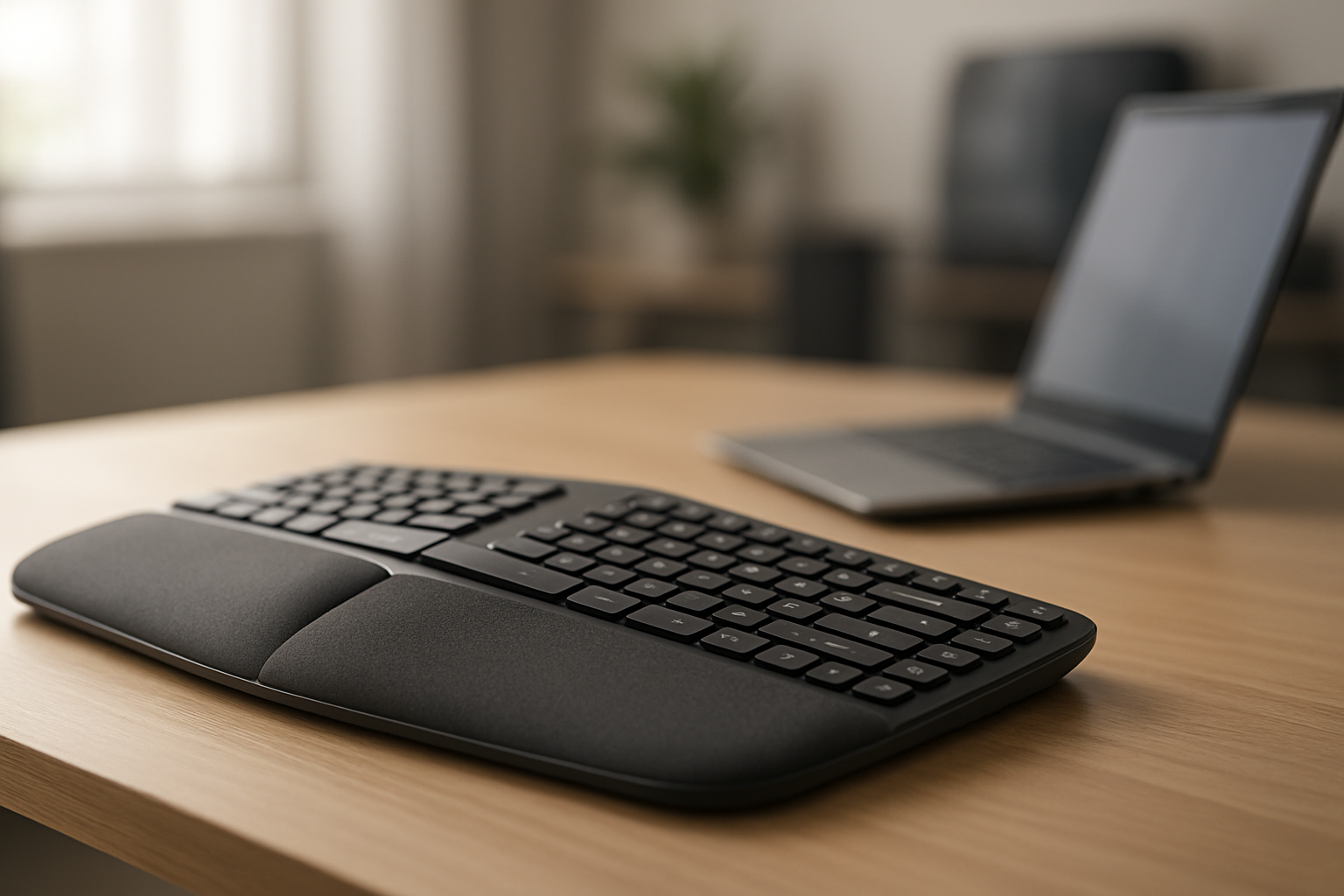
Best Budget Split Keyboards Under $80 in 2026

Photo by Peppy Toad on Unsplash
Best Budget Split Keyboards Under $80 in 2026
Split keyboards don’t have to cost a fortune to reduce wrist strain. The budget tier ( range) has matured significantly, and several solid options now deliver genuine ergonomic benefit without premium pricing. This guide walks you through what actually works at this price point, how to avoid common budget pitfalls, and which models deliver the best value per dollar spent on wrist relief.
Why Split Keyboards Matter for Wrist Health
A split keyboard separates the left and right halves, allowing your hands to sit at a more natural angle rather than angled inward on a traditional keyboard. This alignment reduces pronation (the inward twist of your forearms), which is a primary driver of repetitive strain injury.
Anecdotal reports from long-running threads on r/Ergonomics and r/mechanicalkeyboards suggest that users with mild-to-moderate wrist discomfort report noticeable relief within 1–3 weeks of consistent use. The effect isn’t universal—some users see dramatic improvement, others notice a modest reduction in end-of-day soreness—but the mechanism is sound and supported by occupational health literature.
The catch: budget split keyboards often sacrifice key comfort features (adjustable tenting, programmable keys, premium switches) that premium models include. Knowing which compromises matter and which don’t is how you avoid wasting money on something that makes your wrist worse.
The Budget Split Keyboard Tradeoff: What You Gain and Lose
What budget splits do well: - Establish the split angle itself, which is the primary benefit - Offer proven designs (many budget models are simplified versions of successful premium keyboards) - Arrive fully assembled—no soldering or firmware flashing required - Include basic wrist rests on many models
What budget splits often skip: - Adjustable tenting (angle of the keyboard slope) - Programmable macro keys - Mechanical switches (most budget splits use membrane or cheap mechanical) - Wireless connectivity (though this is changing) - Premium build materials
For someone with chronic wrist pain, the split angle itself is the 80/20 win. The adjustable tenting and macros are nice-to-haves. If you’re choosing between a split keyboard with a fixed angle and a split with full programmability, the fixed-angle model will likely solve 70% of your pain problem. That’s worth knowing.
Top Budget Split Keyboard Picks
Kinesis Freestyle2
The Freestyle2 is the entry-level standard for split keyboards and has held that position for over a decade. Per owner reviews on Amazon and ergonomic keyboard forums, it’s the keyboard most often recommended to beginners precisely because it doesn’t intimidate. Multiple ergonomic keyboard retailers list it as their top-selling budget split model.
The design is simple: two separate halves connected by a cable, with a fixed 9-inch separation and a gentle 4-degree tenting angle. The keys use Kinesis’s membrane switches—not mechanical, but reliable and quiet enough for shared office space. The wrist rest is integrated and cushioned.
Common owner reports: the learning curve is minimal (most typists regain full speed within 3–5 days), the build quality is solid (many users report 5+ years of daily use), and the price sits comfortably in the budget tier. The main complaint is that the tenting angle is fixed—if you want more or less slope, you’re buying a different keyboard.
Return policy & warranty: 30-day return window on Amazon and direct from Kinesis; 2-year manufacturer warranty covers defects.
Best for: typists who want to test the split-keyboard concept without overcommitting financially, office workers who need quiet keys, anyone skeptical about whether a split will actually help.
Microsoft Sculpt Ergonomic Keyboard
Microsoft Sculpt Ergonomic Keyboard
The Sculpt occupies a middle ground: it’s not a true split (the halves are connected), but the design creates a pronounced split angle that approximates the benefit of a fully separated keyboard. The keys are arranged in a wave pattern that slopes inward, and the overall shape is more compact than dedicated split keyboards.
Per aggregated Amazon owner reviews, the Sculpt is popular in corporate environments where desk space is tight. The wireless connectivity (via USB dongle) is a real advantage at this price tier—no cable clutter. The palm rest is cushioned and removable.
The tradeoff: it’s not as dramatic a split as the Freestyle2, so if you need maximum separation angle, this won’t deliver it. But for mild-to-moderate wrist discomfort and small desks, it’s a practical choice.
Return policy & warranty: 30-day return window on Amazon; 1-year manufacturer warranty.
Best for: office workers with limited desk real estate, users who want wireless without paying premium prices, anyone who prefers a more traditional keyboard shape with ergonomic tweaks.
Logitech Wave Keys
Another semi-split (connected halves, wave pattern) that prioritizes comfort for all-day office use. The Wave Keys uses a gentler wave than the Sculpt and includes a more substantial palm rest. It’s wireless via USB dongle and runs on two AA batteries for months at a time.
Per owner reports on Reddit’s r/ergonomics, the Wave Keys is often chosen by office workers who don’t want to commit to a dramatic split but appreciate the ergonomic tweaks. The key switches are membrane and quiet. The build is plastic but durable—many users report 3–5 years of heavy daily use.
The learning curve is virtually zero because the layout is so close to a standard keyboard. That’s both a strength (easy transition) and a weakness (less dramatic benefit than a true split).
Return policy & warranty: 30-day return window on Amazon; 3-year manufacturer warranty covers defects and wear.
Best for: office environments where you need quiet keys and wireless convenience, users transitioning slowly into ergonomic keyboards, anyone who prioritizes reliability and low maintenance.
Keychron K14
The K14 is a more recent entry in the budget split space and represents the shift toward mechanical switches at lower price points. It’s a true split (two separate halves), uses hot-swap mechanical switches (so you can customize the feel), and includes wireless connectivity via Bluetooth.
Per teardown reviews and owner threads on r/mechanicalkeyboards, the build quality is solid for the price—aluminum frame, stabilizers that don’t rattle excessively, and switches that feel responsive. The split angle is fixed, but the keyboard includes a small tenting stand.
The catch: the K14 is newer and has fewer long-term owner reports than the Freestyle2 or Sculpt. Early adopters report good reliability, but the 3–5 year durability picture is still forming. If you value proven longevity, this is a slight risk. If you want the mechanical-switch feel without premium pricing, it’s worth the gamble.
Return policy & warranty: 30-day return window on Keychron’s website and Amazon; 1-year manufacturer warranty; 14-day trial period on direct orders.
Best for: users who want mechanical switches, tech enthusiasts who enjoy customizing switch feel, anyone willing to trade proven long-term data for newer design and wireless convenience.
Nuphy Air75
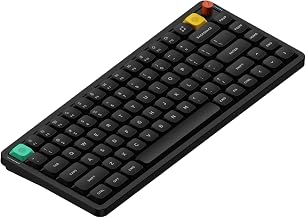
The Air75 is a compact wireless split keyboard with mechanical switches and a price point that undercuts most of its competition. It’s smaller than the Freestyle2 (more laptop-friendly) and uses Bluetooth for wireless connectivity.
Per owner reports on r/mechanicalkeyboards, the Air75 punches above its weight class in build quality—the stabilizers are smooth, the switches are responsive, and the overall typing feel is surprisingly premium for the budget tier. The split angle is subtle but present.
The learning curve is minimal because the layout is close to a standard compact keyboard. The wireless range is solid (typical Bluetooth performance), and battery life is reported at 2–3 weeks per charge.
Return policy & warranty: 30-day return window on Nuphy’s website; 1-year manufacturer warranty; 30-day risk-free trial on direct orders.
Best for: remote workers who move between desks, laptop users who want a portable split keyboard, anyone prioritizing wireless freedom and compact size over maximum ergonomic angle.
Membrane vs. Mechanical Switches in Budget Splits
Most budget split keyboards use membrane switches—a rubber dome under each key cap that provides tactile feedback without the mechanical “click.” Mechanical switches (individual springs under each cap) are more durable and offer more customization, but they cost more to manufacture.
At the price point, you’re mostly choosing between:
- Membrane splits (Freestyle2, Sculpt, Wave Keys): quieter, lighter touch, proven reliability in office settings, but less customizable and slightly less satisfying to type on per user reports.
- Budget mechanical splits (Keychron K14, Nuphy Air75): more satisfying tactile feedback, hot-swap options for switch customization, but slightly higher noise level and a smaller pool of long-term durability data.
For wrist pain relief, the switch type matters less than the split angle itself. Choose based on your noise tolerance and preference for typing feel. Mechanical vs Membrane Split Keyboards for Home Office explores this tradeoff in depth.
Wireless vs. Wired: The Budget Consideration
Wireless split keyboards at the tier are becoming standard, not premium. The Sculpt, Wave Keys, K14, and Air75 all offer wireless via USB dongle or Bluetooth.
Per owner reports, wireless adds convenience (no cable management) with negligible downsides at this price point. The only reason to choose wired is if you prefer the simplicity of a single cable and don’t mind desk clutter.
If you’re a gamer, note that wireless split keyboards introduce a small input lag (typically <10ms, imperceptible for typing but noticeable in fast-paced games). For office work and writing, this lag is irrelevant.
How to Avoid Budget Split Keyboard Mistakes
Mistake 1: Buying a split keyboard that’s too aggressive for your current pain level.
If you’re just beginning to feel wrist soreness, start with a semi-split (Sculpt or Wave Keys) first. These have a gentler angle and allow your forearms to adapt gradually. After 2–3 weeks, if you want more separation, upgrade to a true split like the Freestyle2. A maximum-separation split (9-inch separation) can increase discomfort for the first week as your forearms adjust to the dramatic angle change.
Mistake 2: Assuming the wrist rest is enough.
A split keyboard reduces pronation, but the wrist rest is secondary. Per occupational health literature and r/Ergonomics discussions, the split angle does the heavy lifting. A budget split with a basic wrist rest will outperform a traditional keyboard with a premium wrist rest. Don’t overthink the rest quality.
Mistake 3: Ignoring your desk setup.
A split keyboard only works if your desk height and chair height are correct. If your elbows are above your wrists when typing, even the best split keyboard won’t help. Spend time adjusting your chair height and desk position before blaming the keyboard. Split Keyboard for Wrist Pain: Complete 2026 Guide includes a full setup guide.
Mistake 4: Expecting instant relief.
Per long-running user reports, the benefit timeline is typically 1–3 weeks of consistent use. Your forearms need time to adapt to the new angle. If you’re pain-free within days, great—but don’t assume a keyboard isn’t working if you’re still sore after 3 days.
Mistake 5: Choosing purely on price.
The cheapest split keyboard often uses very cheap switches or poor build quality that creates new ergonomic problems. The tier is where budget and quality intersect meaningfully. Spending instead of usually yields noticeably better durability and comfort.
FAQ
Q: Will a budget split keyboard actually reduce my wrist pain?
A: It depends on the cause. If your pain is driven by pronation (inward wrist twist) and repetitive strain from keyboard angle, a split keyboard addresses that directly. Per occupational health research on ergonomic interventions, most users report meaningful relief within 2–3 weeks. If your pain stems from poor posture, weak forearm muscles, or repetitive strain unrelated to wrist angle, a split keyboard alone won’t solve it. The best approach: fix your desk setup first (chair height, monitor height, wrist position), then add a split keyboard. Split Keyboard for Wrist Pain: Does It Really Help? explores the science.
Q: Should I buy a budget split or save for a premium model?
A: Start with budget. The split angle is the primary benefit, and budget models deliver that. If after 2–3 months you want adjustable tenting or programmable keys, upgrade then. Most users find a split solves their problem completely.
Q: Is wireless worth the extra cost?
A: At the budget tier, wireless adds convenience and removes cable clutter. If your desk is cramped, it’s worth it. If you have a cable-management system, wired is fine. The performance difference is negligible for typing.
Q: Can I use a budget split keyboard for gaming?
A: Yes, but it’s not ideal. The split angle is optimized for typing, not gaming. The wireless lag (if wireless) is imperceptible for typing but noticeable in competitive games. Membrane switches are slower to respond than mechanical. If gaming is your primary use, a traditional gaming keyboard is a better choice. If you game casually and type professionally, a budget split is a solid compromise.
Q: How long do budget split keyboards last?
A: Per owner reports, membrane-switch splits (Freestyle2, Sculpt, Wave Keys) typically last 5+ years of daily use. Mechanical-switch splits (Keychron K14, Air75) have less long-term data, but early reports suggest similar durability. The main failure point is the cable (if wired) or the wireless dongle. Most users replace the keyboard voluntarily before it fails.
Q: What if a budget split doesn’t work for me?
A: Return it within the return window (typically 30 days on Amazon and direct from manufacturers). Most budget splits are returnable, so you can test the split-keyboard concept risk-free. If the split angle doesn’t help after 2–3 weeks of consistent use, it may not be the right solution for your pain—consider consulting an occupational therapist.
Closing: The Budget Split Keyboard Reality
The split keyboard tier has matured to the point where you’re not sacrificing core ergonomic benefit for price. The Freestyle2, Sculpt, Wave Keys, Keychron K14, and Nuphy Air75 all deliver the primary benefit of a split keyboard—reduced pronation and wrist strain—without premium pricing.
The tradeoff is in customization and premium materials, not in the core ergonomic function. If you’re skeptical about whether a split will help your wrists, a budget model is the right place to start. If you’re already convinced and want full programmability and adjustable tenting, save for a premium model. But for most people with mild-to-moderate wrist discomfort, budget is enough.
Start with the Freestyle2 if you want the proven design with the gentlest learning curve. Choose the Sculpt or Wave Keys if your desk is small and you want wireless. Pick the Keychron K14 or Air75 if you want mechanical switches and don’t mind newer designs with less long-term data.
And remember: the keyboard is one piece of the puzzle. Split Keyboard for Wrist Pain Relief 2026 covers the full picture of desk setup, posture, and ergonomic habits that make a split keyboard actually work.