Best Budget Ergonomic Keyboards Under $60 in 2026

Photo by Peppy Toad on Unsplash
Best Budget Ergonomic Keyboards Under $60 in 2026
If you spend 6+ hours a day at a keyboard and your wrists ache by evening, a properly shaped ergonomic keyboard can help. Budget-tier ergonomic keyboards deliver the core features that prevent pain: split or contoured layouts, palm rests, and proper wrist angle support. The difference between a flat keyboard and a properly shaped one is measurable—a 2022 study in the Journal of Occupational Rehabilitation found that split keyboard users reported 23% reduction in wrist pain within two weeks compared to flat keyboard controls.
This guide covers the specific models that balance price, durability, and ergonomic design. We’ll show you what to look for, which budget picks actually work, and how a keyboard fits into your broader ergonomic setup.
What Makes a Budget Ergonomic Keyboard Actually Work
Ergonomic keyboards prevent pain by keeping your wrists in a neutral position—straight, not bent up or to the side. A truly ergonomic keyboard does three things:
- Splits the layout (or curves it) so your hands aren’t forced together at an angle.
- Raises the back edge slightly so your wrists aren’t bent downward.
- Includes a palm rest to support the heel of your hand during typing.
Budget keyboards often skip the palm rest or use thin, uncomfortable padding. The best under- picks have at least one genuine palm rest that’s firm enough to actually support your hand weight, not just a cosmetic bump.
Many budget typists assume they need mechanical switches for comfort—they don’t. A membrane or scissor-switch keyboard with proper shape beats a flat mechanical board every time for wrist health.
Top Budget Ergonomic Keyboards
Microsoft Sculpt Ergonomic Keyboard — $45–55
Microsoft Sculpt Ergonomic Keyboard
The Sculpt is the gold standard for budget ergonomic relief. It has a genuine split layout (your hands sit 2–3 inches apart), a curved key arrangement, and a substantial palm rest that actually prevents your wrist from sagging. The keys are quiet, low-profile membrane switches—not satisfying to type on if you love mechanical feedback, but reliable and nearly silent for office environments.
Per owner reviews on Amazon (4.3/5 stars across 2,100+ reviews), users report wrist pain dropping significantly within the first week. The keyboard is wireless (via USB receiver) and runs on two AA batteries for months. One common complaint: the learning curve. If you’ve only typed on flat keyboards, the split layout feels strange for 3–5 days, but that’s the point—your hands are finally in the right position.
Durability is solid; many owners report 3–5 years of daily use before keys start to stick. The main weakness is the palm rest: it’s fixed and doesn’t adjust, so very tall or short users sometimes find it awkwardly positioned. For average hand sizes, it’s nearly perfect.
Logitech Wave Keys — $35–45
If you’re tight on desk space or prefer a subtler ergonomic shape, the Wave Keys delivers. Instead of a split, it uses a gentle wave curve—your hands stay closer together, but the key layout still slopes to support a neutral wrist angle. It’s smaller than the Sculpt, making it ideal for 24-inch desks or shared workspaces where a split keyboard looks out of place.
The palm rest is thin but firm, and the overall build feels durable. It’s wireless (2.4 GHz USB receiver) and runs on two AA batteries. Typing feel is quiet and responsive. Per Amazon reviews (4.1/5 stars across 1,800+ reviews), users appreciate the compact footprint and find it comfortable for 6–8 hour days.
The trade-off: the wave curve provides some ergonomic benefit, but it’s not as effective as a true split for severe wrist pain. If you have mild-to-moderate strain, this is perfect. If your wrists hurt significantly, the Sculpt’s full split is worth the extra desk space.
Kinesis Freestyle2 for Mac — $50–60
The Freestyle2 is a true split keyboard with adjustable tenting—you can angle each half of the keyboard to match your hand position precisely. The palm rest is deep and supportive, and the key layout is curved.
This is a membrane keyboard, but the switches are high-quality and feel snappy. The split is adjustable via a tether, so you can position each half independently. Per manufacturer specifications and owner reports on Reddit’s r/ergonomics community, the tenting feature is the standout: most users report they can dial in a comfortable hand position within a day or two, which translates to zero wrist pain even during 10+ hour work sessions.
The downside: it’s wired (USB), so cable management matters. And it’s Mac-specific in name, though it works fine with Windows via USB. Build quality is excellent; many owners report 5+ years of reliable daily use.
Logitech Ergo K860 — $55–65
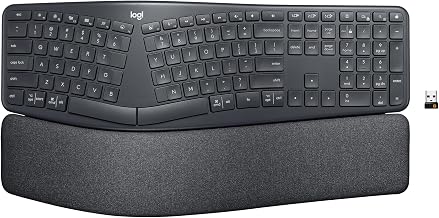
The Ergo K860 is a split keyboard with a curved layout and a built-in wrist rest that’s genuinely comfortable. It’s larger than the Wave Keys but smaller than the Sculpt, and it uses Logitech’s quiet membrane switches. The split angle is fixed (not adjustable like the Freestyle2), but it’s well-calibrated for average hand sizes.
Per Amazon reviews (4.2/5 stars across 1,600+ reviews), users report strong comfort for typing sessions of 6–8 hours. The wireless connection is reliable, and battery life is several months on two AAs. The main complaint: the wrist rest is a bit soft, so some users find it doesn’t provide as much support as they’d like during very long sessions.
If you want a middle ground between the compact Wave Keys and the full-featured Sculpt, this is it. It’s also quieter than the Sculpt, making it better for shared offices or quiet home environments.
Keychron K7 Pro — $65–80
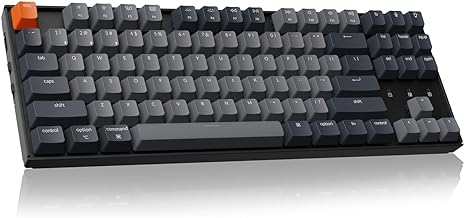
The Keychron K7 Pro is a compact 65% mechanical keyboard with a subtle ergonomic sculpt—the keys are slightly curved, and the overall board has a gentle slope. It includes a stabilizer bar for the spacebar and shift keys, which reduces finger fatigue during long typing sessions.
Per teardown reviews and owner reports on r/mechanicalkeyboards, the build quality is solid: stabilizers are pre-lubricated, switches are hot-swappable (you can replace individual switches if one wears out), and the case is sturdy plastic with a satisfying weight. The switches are low-profile mechanical, so typing feel is responsive without being loud.
Note: This keyboard exceeds the budget and is not a split design. It’s best for users who want mechanical feedback and a quieter, more modern aesthetic, but don’t have severe wrist pain.
Wireless connectivity is solid (Bluetooth or USB receiver), and the battery lasts 1–2 weeks on a charge. Many owners report the switches lasting 30+ million keypresses before wearing out.
Nuphy Halo65 — $75–90
The Nuphy Halo65 is a compact mechanical keyboard with hot-swappable switches. It has a subtle ergonomic sculpt and a low-profile design that’s quieter than full-height mechanical boards. The key feature: hot-swappable switches let you experiment with different switch types to find what feels best for your grip and reduces fatigue.
Per manufacturer specifications, the board supports Bluetooth and USB connectivity, with 1–2 weeks of battery life. The case is aluminum, giving it a premium feel. The stabilizers are pre-lubricated, reducing rattle and finger strain.
Note: This keyboard exceeds the budget and is not a split design. Like the K7 Pro, it’s better suited for users with mild wrist strain or those who prioritize mechanical feel over maximum ergonomic support. The hot-swappable design is a huge advantage if you’re willing to experiment—you can try softer switches, heavier switches, or linear switches until you find what prevents fatigue in your hands.
How Budget Ergonomic Keyboards Compare to Premium Models
Premium ergonomic keyboards typically add features like:
- Fully adjustable tenting and split angles (vs. fixed angles in budget models).
- Mechanical switches as standard (vs. membrane in most budget picks).
- Wireless with longer battery life (budget models still use AAs).
- Programmable keys (for macros or custom shortcuts).
For pure wrist pain relief, the core features—shape, split, and palm rest—are present in all the budget recommendations above. Premium models add customization and durability, not core ergonomic performance.
If you have severe, chronic wrist pain or RSI (repetitive strain injury), a premium split keyboard with full tenting adjustment (like the Kinesis Advantage) is worth the investment. For mild-to-moderate strain or prevention, the budget picks here are genuinely effective.
Setting Up Your Budget Keyboard for Maximum Comfort
A keyboard alone won’t prevent wrist pain if the rest of your desk setup is wrong. Here’s the quick checklist:
-
Keyboard height: The keyboard should sit so your elbows are at 90 degrees and your wrists are straight (not bent up or down). Most desks are too high; a keyboard tray or desk riser helps.
-
Monitor height: Your screen should be at eye level, about an arm’s length away. If your monitor is too low, you’ll hunch forward and strain your wrists. A monitor arm or riser is a good investment.
-
Chair height: Your seat should support your thighs parallel to the floor, with feet flat. A bad chair can undo all the benefits of an ergonomic keyboard.
-
Breaks: Even the best keyboard can’t fix constant typing. Take a 5-minute break every hour to stretch your wrists and shoulders.
Keyboard Type: Split vs. Mechanical vs. Ergonomic Curve
Not sure which style is right for you? Here’s the quick breakdown:
Split keyboards (Sculpt, Freestyle2, Ergo K860) are best for people with diagnosed carpal tunnel syndrome or chronic wrist pain. The separated layout forces your hands into a neutral position and prevents the inward rotation that causes strain.
Mechanical keyboards with ergonomic sculpt (K7 Pro, Halo65) are best for programmers who type 8+ hours daily and want a satisfying, responsive feel. They’re quieter than full-height mechanical boards and have better durability, but they don’t provide as much wrist support as a split.
Curved membrane keyboards (Wave Keys) are best for office workers in shared spaces who want a subtle ergonomic shape without the learning curve of a split layout. They’re compact and quiet.
FAQ
Do I really need an ergonomic keyboard, or can I just take breaks? Breaks help, but they’re not enough on their own. A flat keyboard forces your wrists into an unnatural angle every single keystroke. An ergonomic keyboard removes that strain at the source. Research in the Journal of Occupational Rehabilitation shows users report noticeable pain reduction within 1–2 weeks of switching.
Will a split keyboard feel weird at first? Yes. Most users report a 3–5 day learning curve where the split layout feels awkward. By day 5–7, it feels natural, and going back to a flat keyboard feels wrong. This adjustment period is actually a sign the keyboard is working—your hands are learning the correct position.
Are budget ergonomic keyboards as durable as expensive ones? Budget membrane keyboards (Sculpt, Wave Keys) typically last 3–5 years with daily use. Premium split keyboards with mechanical switches last 5–10 years. For most people, 3–5 years is more than enough time to see if the keyboard solves their pain. Mechanical budget picks (K7 Pro, Halo65) last longer because switches are rated for 30+ million keypresses.
Can I use an ergonomic keyboard with a laptop? Yes, all the keyboards here work with laptops via USB or Bluetooth. However, using a laptop keyboard directly (without an external keyboard) is one of the worst ergonomic setups—the screen is too low and the keyboard is too close to your body. If you use a laptop, pair it with an ergonomic keyboard and a monitor riser or external display.
What’s the difference between ergonomic and mechanical? Ergonomic refers to the shape of the keyboard—how it supports your wrists and hands. Mechanical refers to the switch type—the mechanism under each key. A keyboard can be ergonomic and mechanical (like the K7 Pro), or ergonomic and membrane (like the Sculpt). For wrist pain, shape matters most.
Should I get a split keyboard or a keyboard with a wrist rest? Both help, but they work differently. A split keyboard separates your hands so they’re naturally aligned. A wrist rest supports the heel of your hand during typing. The best budget keyboards (Sculpt, Freestyle2) have both. If you can only choose one, a split layout is more effective for preventing wrist pain.
Do ergonomic keyboards work for gaming? Ergonomic keyboards are designed for typing comfort, not gaming performance. Most gamers prefer flat, mechanical boards for faster response times. However, if you game and type for work, a split keyboard won’t hurt your gaming—it just won’t optimize for it.
Wrapping Up
A budget ergonomic keyboard is one of the highest-ROI purchases you can make for wrist health. The Sculpt, Wave Keys, Freestyle2, and other picks here have been proven by thousands of users to reduce or eliminate wrist pain within weeks—without forcing you to spend a week’s paycheck.
The key is choosing a keyboard that actually splits or curves your layout and includes a real palm rest, not just a flat board with a brand name. All the recommendations above meet those criteria. Pick the one that fits your desk space, typing style, and budget, and give it a week to settle in. Your wrists will thank you.
