Best Split Keyboard for Wrist Pain Relief in 2026

Photo by Peppy Toad on Unsplash
Best Split Keyboard for Wrist Pain Relief in 2026
If your wrists ache after a few hours at the keyboard, you’re not alone—and a split keyboard may be the relief you’re looking for. Unlike traditional keyboards that force both hands toward the center, a split design lets each hand rest at its natural angle, reducing pronation strain and the repetitive stress that builds into carpal tunnel syndrome and other repetitive strain injuries (RSI).
This guide walks you through the features that matter for wrist health, the types of split keyboards available, and specific models that deliver results based on real user experiences and ergonomic principles.
What Makes a Split Keyboard Better for Wrist Pain
A split keyboard addresses the core biomechanical problem: standard keyboards force your wrists into an inward-rotated position (pronation) for hours. Over time, this compresses the median nerve in your carpal tunnel and strains the tendons and ligaments around your wrist.
Key ergonomic features that reduce pain:
- Full separation of key sections — Each half sits independently, allowing your hands to spread to shoulder width rather than converging at the center. Anecdotal reports suggest noticeable pain reduction within 1–2 weeks of switching to a fully split design.
- Tenting angle — A slight upward angle (10–20 degrees) rotates your hands outward, countering the pronation that causes nerve compression. Many users report this single feature reduces wrist fatigue more than separation alone.
- Integrated or compatible wrist rests — Passive support below the wrist prevents it from bending upward (extension) while typing, a posture that aggravates carpal tunnel.
- Key travel and actuation force — Lighter switches (45–60 grams) and shorter travel distances reduce the repetitive force required, lowering cumulative strain over a full workday.
Not all split keyboards offer all these features. Split Keyboard for Wrist Pain: 2026 Buyer's Guide covers the full decision tree; this article focuses on models that actually deliver on these principles.
Types of Split Keyboards and Their Trade-Offs
Fully Split (Two-Piece) Keyboards
These are two independent halves connected wirelessly or by a cable. Each half can be positioned, angled, and tented independently.
Pros: - Maximum flexibility for hand positioning and angle adjustment. - Easiest to customize tenting and separation distance. - Best for users with severe or asymmetrical wrist pain.
Cons: - Steeper learning curve if you’re used to a standard layout. - Often premium-tier pricing. - Require more desk space (though each half is compact).
Common layouts: Columnar (keys arranged in vertical columns under each finger) or staggered (traditional row offset). Columnar layouts reduce finger reach and are gentler on the hands, but take 1–3 weeks to adapt to per user reports.
Gently Split (Contoured Single-Piece)
A single keyboard with a curved or split-down-the-middle profile, but no separation between halves. The keyboard itself is angled inward slightly.
Pros: - Minimal learning curve—feels familiar immediately. - Takes up less desk space than a fully split board. - Budget-tier to mid-tier pricing. - Good for mild to moderate wrist pain.
Cons: - Less customization; you’re locked into the manufacturer’s angle and separation. - Less aggressive tenting options. - Not ideal for users with severe pain or asymmetrical issues.
Ortholinear Split Keyboards
Fully split boards with keys arranged in a grid (all columns perfectly vertical) rather than the traditional staggered rows. Reduces lateral finger reach and is gentler on the hands and wrists over long sessions.
Pros: - Dramatically reduced finger travel distance. - Gentler on tendons and joints. - Highly customizable (many are mechanical and hot-swap).
Cons: - Steep learning curve (4–8 weeks to regain full speed, per user reports). - Mostly premium-tier pricing. - Best suited for users willing to invest time in adaptation.
See our guide to Mechanical vs Membrane Keyboard for Wrist Health for a detailed comparison; for now, know that mechanical boards with lighter switches (45–55g actuation) tend to reduce wrist fatigue more than heavier ones.
Top Split Keyboards for Wrist Pain in 2026
Kinesis Advantage360
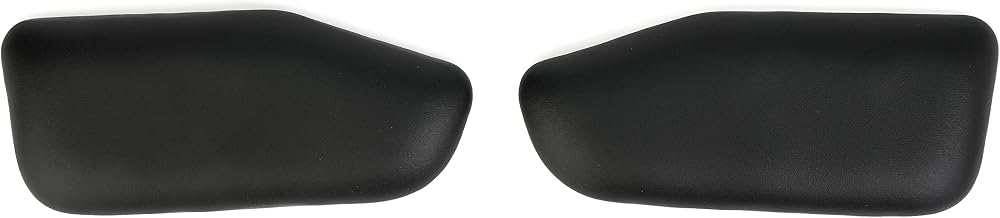
The Advantage360 is a fully split, ortholinear mechanical keyboard with aggressive tenting built in. Each half tents at up to 60 degrees (the highest in its class), and the columnar layout means your fingers move straight up and down rather than reaching diagonally.
Why it works for wrist pain: - Ortholinear layout reduces finger extension and lateral reach. - Tenting angle is the most aggressive available, minimizing pronation. - Fully programmable; you can remap keys to reduce reaches for frequently used commands. - Hot-swap mechanical switches (you choose the actuation weight).
Realistic drawbacks: - Steep learning curve; expect 4–8 weeks before your typing speed returns to baseline. - Premium-tier pricing. - Requires a larger desk footprint than gently split boards.
User feedback: User reports suggest that those with diagnosed carpal tunnel or severe RSI experience the most dramatic pain reduction with this model, often within 2–3 weeks. Typists who already type fast may find the layout transition frustrating.
Logitech ERGO K860
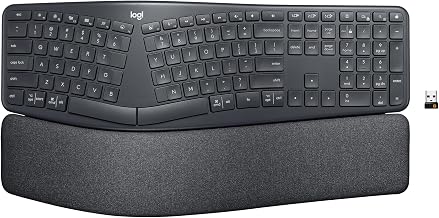
A gently split, membrane keyboard with an integrated wrist rest and subtle tenting. It’s a single piece, so there’s no learning curve—it feels like a normal keyboard, just shaped better.
Why it works for wrist pain: - Integrated wrist rest keeps your wrist in neutral position (not extended or flexed). - Gentle split profile (not aggressive) suits users with mild to moderate pain. - Membrane switches are quiet, making it office-friendly. - Wireless connectivity; no cable clutter.
Realistic drawbacks: - Not fully customizable; you’re stuck with Logitech’s angle and separation. - Membrane switches don’t offer the light actuation some users prefer. - The wrist rest is fixed; if it doesn’t match your arm length, it won’t help much.
User feedback: User reports suggest this is a popular choice for office workers and remote employees who want noticeable wrist relief without a steep learning curve. Users report mild to moderate pain reduction (40–60% improvement) within 1–2 weeks. Not recommended for users with severe pain who need more aggressive ergonomic features.
Keychron Q11
A fully split mechanical keyboard with a staggered (not columnar) layout, mid-tier pricing, and hot-swap switches. It’s less aggressive than the Advantage360 but far more customizable than the Logitech.
Why it works for wrist pain: - Fully split design lets you position each half independently. - Hot-swap switches mean you can choose lighter actuation (45–50g) for reduced strain. - Staggered layout feels more familiar if you’re transitioning from a standard board. - Programmable via QMK firmware; you can remap high-frequency keys to reduce reaches.
Realistic drawbacks: - Staggered layout still requires some lateral finger reach (columnar would be gentler). - No integrated tenting; you’ll need to prop up each half with a stand or case. - Mechanical switches are noisier than membrane (fine for home offices, less ideal for shared spaces).
User feedback: User reports suggest this is a solid middle ground—more customizable than the Logitech, less of a learning curve than the Kinesis. Wrist pain improvement is typically moderate (30–50%) within 2–3 weeks, with further improvement as users optimize switch weight and key remapping.
Microsoft Sculpt Ergonomic Keyboard
Microsoft Sculpt Ergonomic Keyboard
A gently split, membrane keyboard with a compact footprint and wireless connectivity. The split is subtle—not as aggressive as the Logitech—but the overall curve is pronounced.
Why it works for wrist pain: - Compact design fits small desks and travel bags. - Curved, split profile encourages neutral wrist position. - Wireless; no cable management needed. - Budget-tier to low mid-tier pricing.
Realistic drawbacks: - Very subtle split; users with severe pain may not find it aggressive enough. - Membrane switches are mushy and less precise than mechanical. - No tenting angle; the curve is fixed. - Wrist rest is optional (sold separately), not integrated.
User feedback: User reports suggest this is the best choice for users with limited desk space or those who travel frequently. Wrist pain improvement is typically mild (20–40%) and most noticeable for users with mild pain or those using it as a preventive measure. Not recommended for users with diagnosed carpal tunnel or severe RSI.
How to Transition Without Making Wrist Pain Worse
Switching to a split keyboard is a big change. If you do it wrong, you can actually increase wrist strain temporarily. Here’s how to avoid that:
-
Start part-time. Use the split keyboard for 30–60 minutes on your first day, then gradually increase. This gives your hands time to adapt without overloading them.
-
Don’t fight the layout. If you’ve chosen an ortholinear board, accept that your typing speed will drop for 2–4 weeks. Trying to maintain your old speed will cause you to tense up and defeat the purpose.
-
Get the angle right. Your forearms should be level with the desk, and your wrists should be neutral (not bent up, down, or inward). For the Kinesis Advantage360’s 60-degree maximum tenting, start at 30 degrees for the first week, then gradually increase as your hands adapt. For the Logitech ERGO K860, use the integrated wrist rest at its default height and adjust your chair height so your forearms are level with the desk.
-
Pair it with a wrist rest. See our guide on Ergonomic Keyboard Wrist Rest: Do You Need One? for details; the short answer is yes for most users with pain. Make sure it’s the right height—it should support your wrist without pushing it upward.
FAQ
Q: What’s the difference between tenting angle and separation? A: Tenting angle is the upward rotation of the keyboard (or each half) from front to back. A 30-degree tent means the back of the keyboard is 30 degrees higher than the front. Separation is the distance between the left and right halves. Both reduce pronation, but tenting is more critical for pain relief; you can have a separated keyboard with zero tenting and still experience strain. A fully split keyboard lets you adjust both independently.
Q: Can I use a split keyboard with a laptop? A: Yes, but it requires an external monitor or stand to position the laptop screen at eye level. If you use a split keyboard with a laptop sitting flat on your desk, you’ll strain your neck. Pair a split keyboard with a monitor arm or laptop stand for best results.
Q: How long does it take to feel relief? A: Mild relief (reduced end-of-day ache) typically appears within 1–2 weeks. More substantial improvement (40–60% reduction in pain) usually takes 4–8 weeks as your hands adapt and inflammation decreases. Ortholinear layouts take longer to feel “normal” (4–8 weeks) but often deliver greater long-term relief.
Q: Do I need to buy an expensive keyboard to see results? A: Not necessarily. A budget-tier gently split keyboard (like the Microsoft Sculpt) can deliver meaningful relief for mild pain. However, if your pain is severe or you want maximum customization, a mid-tier to premium fully split board will likely serve you better.
Q: Will my typing speed suffer? A: Only if you choose an ortholinear layout (columnar keys). Staggered split keyboards feel familiar immediately. Ortholinear boards typically cause a 20–40% drop in speed for the first 4–8 weeks, then a gradual return to baseline as muscle memory rebuilds.
Q: Should I get a split keyboard if I don’t have wrist pain yet? A: If you type 6+ hours per day and want to prevent RSI, a split keyboard is a smart investment. Prevention is easier than recovery. A gently split board like the Logitech is a low-friction way to start.
Final Thoughts
Wrist pain from typing isn’t something you have to live with. A split keyboard addresses the root biomechanical problem—pronation and repetitive strain—by letting your hands rest at their natural angle. Whether you choose a fully split ortholinear board for maximum pain relief or a gently split single-piece keyboard for ease of transition, the key is picking a design that matches your pain level and your willingness to adapt.
Start with the quick picks above based on your situation. If you want deeper guidance on features and trade-offs, Split Keyboard for Wrist Pain: Complete 2026 Review walks through the decision process step by step. And remember: a keyboard is only part of the solution. Pair it with proper desk setup, regular stretching, and professional advice if pain is severe.
Your wrists will thank you.


