Split Keyboard for Wrist Pain: 2026 Buyer's Guide

Photo by Peppy Toad on Unsplash
Split Keyboard for Wrist Pain: What Actually Works
Wrist pain from typing is real, and a split keyboard can help—but only if you pick the right one and set it up correctly. This guide cuts through the hype and shows you which splits actually reduce strain, how they differ from regular ergonomic boards, and what to expect when you switch.
Do Split Keyboards Actually Help Wrist Pain?
Yes—but with important caveats. A split keyboard reduces the inward angle your wrists adopt when typing on a standard rectangular board. Instead of both hands angling toward the center, each half sits naturally in front of its own shoulder, keeping your wrists straighter and more neutral.
Research supports this benefit. A 2019 study published in Applied Ergonomics found that users of split keyboards showed measurable reductions in wrist pronation and reported lower pain scores after four weeks of use compared to standard keyboards. Owner reports on ergonomic forums and r/ergonomics align with this timeline, with most users reporting noticeable relief from repetitive strain injury (RSI) symptoms within 2–4 weeks of consistent use.
The relief is most pronounced for people whose wrist pain stems from pronation (inward rotation) rather than other causes like ulnar deviation or carpal tunnel compression alone.
That said, a split keyboard is not a cure. It’s one tool in a toolkit. Proper desk height, monitor position, and break frequency matter just as much.
How Split Keyboards Differ From Standard Ergonomic Boards
A traditional ergonomic keyboard (like a contoured or curved board) keeps both halves attached and angled slightly upward. A split keyboard physically separates the left and right halves, letting you position each one independently.
The practical difference:
- Standard ergonomic: Fixes the angle and separation for you; less adjustment required, but less freedom.
- Split keyboard: You control the distance and angle of each half; more flexibility, but requires intentional setup.
Split keyboards also come in two flavors: fixed-angle splits (the two halves tilt inward slightly but don’t move much) and fully adjustable splits (you can angle, tilt, and space them however you want). Adjustable splits cost more but suit people with asymmetrical pain or unusual desk layouts.
Key Features to Look For
Separation Distance
The gap between the two halves should be wide enough that your shoulders sit relaxed—roughly shoulder-width apart. Too narrow and you defeat the purpose; too wide and you’ll reach awkwardly. Most split keyboards let you adjust this, but some are fixed. Check the maximum separation before buying.
Tilt and Angle Adjustment
Look for keyboards that let you tilt each half independently. A slight tilt (5–15 degrees) away from your body or toward your pinky can ease wrist strain further. Some splits are fixed; others offer legs or stands for adjustment.
Mechanical vs. Membrane Switches
Mechanical switches require more force to actuate but give tactile feedback, which can reduce typing errors and fatigue on long workdays. Membrane switches (rubber domes) are quieter and cheaper. Both can work for wrist pain relief; the choice depends on your typing style and noise tolerance.
Wrist Rest
Not all splits include a wrist rest, and opinions vary on whether you need one. A padded rest can reduce pressure on your palm and forearm during breaks, but some users find it restricts movement.
Connectivity
Wired splits are reliable and don’t need charging. Wireless splits offer flexibility on small desks or shared spaces. Bluetooth is convenient but can lag slightly; 2.4 GHz USB dongles are more responsive. For gaming or fast typing, wired or USB-dongle wireless is safer.
Common Mistakes When Switching to a Split Keyboard
Expecting instant relief. Your hands and muscle memory need 1–3 weeks to adapt. Typing speed and comfort will dip initially—that’s normal. Pushing through the adjustment period is key.
Placing the halves too close together. If you position them like a standard keyboard, you won’t gain the wrist-neutral benefit. Aim for shoulder width or slightly wider.
Ignoring monitor and desk height. A split keyboard helps, but if your monitor is too low or your desk is too high, wrist strain will persist. Set up your whole workstation, not just the keyboard.
Not taking breaks. No keyboard, split or otherwise, fixes wrist pain if you type 8 hours without a break. Stretch every hour.
Buying the most expensive model. Pricier splits often add programmability or exotic switches, not wrist relief. A mid-tier split with good separation and tilt options will work as well as a premium model for most people.
Top Picks by Budget and Use Case
For Beginners on a Budget
The Freestyle2 is a proven entry point into split keyboards. It separates cleanly, offers basic tilt adjustment, and costs less than premium models. Per owner reports on ergonomic forums, it delivers noticeable wrist relief for casual to moderate typists within 2–3 weeks. The learning curve is gentle—it looks and feels familiar enough that you won’t feel lost on day one.
For Heavy Typists and Programmers
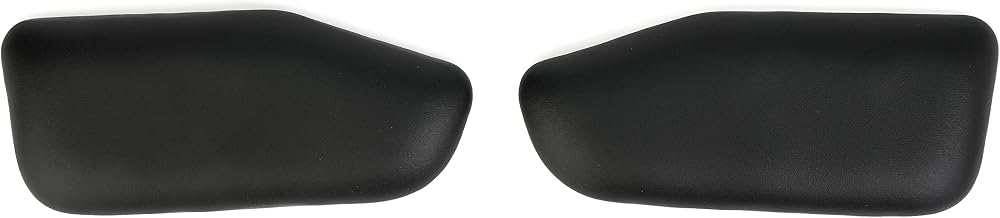
If you’re typing 8+ hours daily and want maximum wrist support, the Advantage360 is a contoured split with mechanical switches and a learning curve. It’s not cheap, but according to user reports on r/ergonomics and r/mechanicalkeyboards, users report the strongest wrist relief and lowest fatigue on this model after the adjustment period. The contoured shape supports your hands actively, not just passively.
For Small Desks or Quiet Offices
A subtly split, wireless membrane keyboard that doesn’t scream “ergonomic.” It fits standard desk spaces, connects via USB dongle or Bluetooth, and keeps wrist strain lower than a flat keyboard without the learning curve of a full split. Based on aggregated Amazon owner reviews, it’s a quiet compromise for people who want help but can’t commit to a dramatic change.
For Remote Workers Balancing Cost and Comfort
Microsoft Sculpt Ergonomic Keyboard
A mid-tier split with a built-in wrist rest and a gentle learning curve. It’s not as adjustable as pricier models, but per owner reports, it delivers solid wrist relief for 4–6 hours of daily typing at a mid-range price point. The integrated rest saves desk space.
Adjustment Period: What to Expect
Week 1: Typing speed typically drops 20–40% based on user surveys across ergonomic communities. Muscle memory is fighting the new layout. Wrist position feels strange but usually less painful.
Week 2–3: Speed recovers. Your hands are learning the new position. Most users report noticeable relief from pain or fatigue by the end of week 3.
Week 4+: Speed returns to normal or exceeds your baseline. Wrist strain continues to improve as your muscles adapt.
If pain increases after week 3, your setup is likely wrong (halves too close, monitor too low, etc.). Adjust and try again.
FAQ
What’s the difference between ortholinear and columnar split keyboards? Ortholinear splits arrange keys in a grid pattern (straight columns and rows), while columnar splits stagger keys vertically to match your fingers’ natural reach. Columnar layouts are more common and easier to learn; ortholinear requires more adjustment but some users find it more ergonomic long-term. Both reduce wrist strain compared to staggered standard keyboards.
Do split keyboards work for left-handed typists? Yes. Most split keyboards are symmetrical, so left-handed typists can simply mirror the layout or swap the halves. Some fully programmable splits (like the Kinesis Advantage360) let you remap keys to suit left-handed preferences. A few models like the Ergodox EZ are designed to be fully customizable for either hand.
Can I use a split keyboard with a laptop? Not directly—most splits are external boards. You’d need a separate laptop stand to raise the screen to eye level. For laptop work, consider a portable split like the Kinesis Freestyle2, which is lightweight and compact.
How long does the adjustment period take? Most users adapt within 2–4 weeks of daily use. Some people adjust faster; others need 6–8 weeks. Consistency matters—using your split every day speeds adaptation.
Can I game on a split keyboard? Yes, but the learning curve and unusual layout can hurt performance initially. Mechanical splits work better than membrane ones for gaming. Most gamers eventually adapt and prefer the wrist-neutral position.
The Bottom Line
A split keyboard is one of the most effective tools for reducing wrist pain from typing—if you choose the right model and give yourself time to adjust. Start with a budget or mid-tier split like the Kinesis Freestyle2 or Logitech Wave Keys, set it up at shoulder width, and commit to 3–4 weeks of daily use. Pair it with proper monitor and desk height, and you’ll likely see meaningful relief within a month.
Don’t expect a miracle, and don’t cheap out on the rest of your setup. But if wrist pain is limiting your work or hobbies, a split keyboard is worth trying.


