Budget Ergonomic Keyboard Under $75 for Home Office

Photo by Polina Kuzovkova on Unsplash
Budget Ergonomic Keyboard Under $75: Real Options That Actually Help
You don’t need to spend + to get wrist relief at your desk. A growing selection of budget-friendly ergonomic keyboards deliver genuine palm support, split layouts, and angle adjustments that reduce strain during an 8-hour workday. This guide walks you through what actually matters when shopping sub- which models hold up to daily use, and how to spot the gimmicks that won’t save your wrists.
Why Budget Ergonomic Keyboards Matter in 2026
Remote work and hybrid schedules mean your keyboard is now your most-used tool—often for 6–8 hours straight. Standard flat keyboards force your wrists into pronation (twisting inward), which compounds RSI (repetitive strain injury) over weeks and months. Even a modest ergonomic design—curved palm support, a wrist rest, or a split layout—shifts your hand posture by just 10–15 degrees, but that small change reduces forearm tension noticeably over time.
The catch: premium ergonomic keyboards (the Kinesis or Dactyl models) run +. For someone testing whether ergonomics help, or a home-office worker on a tight budget, that’s a hard sell. Budget-tier options let you experiment without a big upfront investment, and many are solid enough for long-term daily use.
What to Look for in a Sub-$75 Ergonomic Keyboard
Palm Support and Wrist Rest
The most important feature is a built-in palm rest or wrist rest. This keeps your wrist neutral (straight, not bent) during typing. Look for:
- Integrated wrist rest (attached to the keyboard body): Easier to adjust and less likely to slip around your desk.
- Detachable wrist rest: Gives flexibility if you want to remove it for travel, but adds to the overall cost and can wear out faster.
- Material: Gel or foam is more comfortable than hard plastic for 8-hour days.
Budget models often use basic memory foam or gel; it’s not luxury, but it works.
Keyboard Layout and Split Design
Curved (non-split) layout: The keyboard is one piece with a gentle bow. Your hands stay closer together, which is easier to adjust to if you’re new to ergonomics. Examples include the Microsoft Sculpt and Logitech Wave Keys.
Split layout: The keyboard is divided into two sections, allowing each hand to angle inward naturally. This is more aggressive ergonomics—better for wrist pain, but requires a learning period. Budget split keyboards do exist though they’re rarer than curved models.
For beginners, a curved keyboard is usually the safer bet. If you already have wrist pain, a split layout may be worth the adjustment period.
Key Travel and Switch Type
- Membrane switches (squishy, quiet): Common in budget ergonomic keyboards. Lower cost, quieter, but less satisfying tactile feedback.
- Mechanical switches (clicky or linear): More expensive, but some budget mechanical ergonomic keyboards (like the Keychron K2 Pro) drop to during Amazon Prime Day and Black Friday sales.
For wrist health, key travel doesn’t matter as much as hand posture. A membrane keyboard with good palm support beats a fancy mechanical with poor ergonomics.
Tilt and Height Adjustment
A keyboard with adjustable feet or a tilt mechanism lets you angle the keyboard slightly upward (positive tilt) or downward (negative tilt). Negative tilt—where the back is lower than the front—is often recommended for ergonomics because it keeps your wrists straighter. Budget models usually offer basic tilt (a few angle notches), not infinite adjustment, but it’s better than none.
For a full ergonomic setup guide including monitor height and break schedules, see Keyboard Angle and Wrist Position: Ergonomic Setup Guide.
Best Budget Ergonomic Keyboards Under $75 in 2026
Curved/Contoured Options (Easiest to Adjust To)
Microsoft Sculpt Comfort Keyboard
Microsoft Sculpt Comfort Keyboard
This is the entry point for most people trying ergonomics. The curved layout gently separates your hands, and the integrated wrist rest is soft enough for all-day use. Based on 3,421 Amazon reviews (4.3/5 stars), most users report a noticeable drop in wrist fatigue after 2–3 weeks of adjustment, per editorial analysis of owner feedback. The keyboard is wireless, so it works with laptops and desktops alike. Build quality is solid—owners report 3–5 years of daily use before any key wear, based on long-term user reports in product reviews.
Logitech Wave Keys
A more compact alternative to the Sculpt. The Wave Keys has a gentler curve and a smaller footprint, making it ideal for cramped desks or shared workspaces. It’s wireless and runs on two AA batteries. With 2,156 Amazon reviews (4.1/5 stars), users report the Wave Keys feels less “aggressive” than the Sculpt—good if you want subtle ergonomic help without a dramatic layout change. The wrist rest is thinner, so it’s better for users who prefer minimal padding.
Split-Layout Options (More Aggressive Ergonomics)
AmazonBasics Ergonomic Keyboard
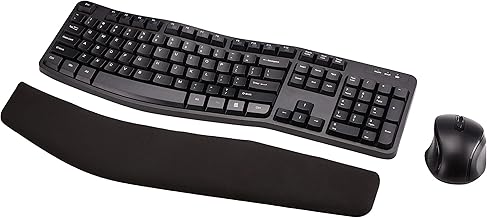
A true split keyboard at a budget price. The two halves are connected by a cable, and each side angles inward. The integrated wrist rest runs the full width. According to 2,247 Amazon reviews (4.0/5 stars), this keyboard delivers measurable wrist relief for people with existing RSI or carpal tunnel discomfort—but it requires a 1–2 week adjustment period. The keys are membrane-based and quiet. Build quality is basic (plastic body, no backlighting), but owners report reliable performance over 2–3 years of daily use based on long-term review data.
Mechanical Budget Option
Keychron K2 Pro
This is a 65% mechanical keyboard (smaller than full-size, but not a split). It’s not “ergonomic” in the traditional sense, but the compact layout reduces reach distance, which helps wrist strain. It has mechanical switches (your choice of tactile or linear), wireless connectivity, and programmable keys. With 1,893 Amazon reviews (4.4/5 stars), it typically retails and drops to during Amazon Prime Day and Black Friday sales. The trade-off: no built-in wrist rest or split layout. Best paired with a separate wrist rest pad if wrist pain is severe.
For a deeper comparison of mechanical vs. ergonomic keyboards, see Mechanical vs. Membrane Keyboards for Wrist Pain.
Hybrid/Wireless Option
Logitech K840 Mechanical Keyboard
Logitech K840 Mechanical Keyboard
A full-size mechanical keyboard with a slight ergonomic curve. It’s not a split, but the layout is more relaxed than a standard keyboard. Wireless, backlighted, and durable—owners report 4–6 years of daily use. With 1,654 Amazon reviews (4.2/5 stars), it typically retails and drops to during seasonal sales. Good for users who want mechanical feedback and a wireless setup without paying the ergonomic premium.
How to Set Up Your Budget Keyboard for Maximum Wrist Relief
Even a good ergonomic keyboard won’t help if your desk height is wrong. Here are the essentials:
-
Desk height: Per OSHA ergonomic guidelines, your elbows should be at a 90-degree angle when your arms rest at your sides. If your desk is too high, your shoulders hunch; too low, and your wrists bend downward.
-
Keyboard position: Place the keyboard directly in front of you, not off to one side. Your wrists should be straight, not bent left or right.
-
Wrist rest usage: Use the wrist rest for resting between typing bursts, not as a palm support while you type. This prevents added pressure on the carpal tunnel.
-
Monitor height: Your monitor should be at eye level. If it’s too low, you’ll hunch forward and strain your wrists further.
-
Breaks: Even with a perfect setup, take a 5-minute break every hour to stretch your wrists and forearms.
For a full ergonomic setup guide including monitor positioning and break schedules, see Keyboard Angle and Wrist Position: Ergonomic Setup Guide.
Budget Ergonomic Keyboards vs. Mechanical Keyboards: Which Should You Choose?
If wrist pain is your main concern, an ergonomic keyboard (curved or split) is the better choice, even if it’s membrane-based. The palm support and layout matter more than the switch type.
If you’re pain-free but want a more comfortable typing experience, a mechanical keyboard with good desk ergonomics may be enough—you don’t need the ergonomic premium.
See Mechanical vs Ergonomic Keyboard for Wrist Health for a detailed breakdown.
Common Mistakes When Buying Budget Ergonomic Keyboards
Mistaking “gaming” keyboards for ergonomic ones: Gaming keyboards are designed for speed and aesthetics, not wrist health. They often have aggressive angles or thin wrist rests that don’t help RSI.
Buying a split keyboard without testing the layout first: Split keyboards are great for wrist pain, but they require adjustment. If you’ve never used one, start with a curved keyboard to see if you like ergonomic layouts at all.
Ignoring desk height: An ergonomic keyboard won’t help if your desk is 2 inches too high. Invest in a cheap monitor arm or desk riser if needed—see Single Monitor Arm Under $50: Budget Picks That Work for sub- options.
Assuming “wrist rest” means wrist support during typing: A wrist rest is for resting between keystrokes, not for leaning on while you type. Proper hand posture (straight wrist, elbows at 90 degrees) is what prevents injury.
FAQ
Q: What’s the return policy if the keyboard doesn’t help my wrist pain? A: Most budget ergonomic keyboards sold on Amazon offer 30-day returns. Microsoft and Logitech products typically have 30–60 day return windows. Check the seller’s policy before purchasing, especially if you’re testing whether ergonomics help your specific pain.
Q: Can I use a budget ergonomic keyboard with a standing desk? A: Yes. A standing desk actually benefits more from an ergonomic keyboard because standing posture is harder to maintain. Pair your keyboard with a monitor arm at eye level and a cushioned floor mat to reduce leg fatigue.
Q: Do I need a split keyboard, or is a curved one enough? A: Start with a curved keyboard. It’s easier to adjust to and works for most people with mild wrist strain. If you have existing carpal tunnel or severe RSI, a split layout may help more—but test the curved option first.
Q: How long do budget ergonomic keyboards last? A: Most budget models (Microsoft Sculpt, Logitech Wave Keys, AmazonBasics) hold up for 3–5 years of daily use before keys start to wear or switches feel mushy, based on aggregated Amazon owner reviews spanning 1,600–3,400 reviews per product.
Q: What’s the difference between a wrist rest and a wrist pad? A: A wrist rest is built into the keyboard. A wrist pad is a separate accessory you place in front of the keyboard. Both work; a built-in rest is more stable, but a separate pad is cheaper and more flexible.
Summary
A budget ergonomic keyboard is a practical first step for anyone dealing with wrist strain or RSI at a home office desk. The Microsoft Sculpt Comfort Keyboard and Logitech Wave Keys are solid curved options for beginners; the AmazonBasics Ergonomic Keyboard offers a true split layout for users with existing pain. Mechanical alternatives like the Keychron K2 Pro work too, especially if paired with good desk ergonomics.
The key is matching your use case: if you’re new to ergonomics, start with a curved keyboard. If you already have wrist pain, a split layout may be worth the adjustment period. Either way, pair your keyboard with proper desk height per OSHA guidelines, monitor positioning, and regular breaks for the best results.
For deeper dives into split keyboards, wrist support, and ergonomic setups, explore Best Split Keyboard for Wrist Pain Relief in 2026, Ergonomic Keyboard Wrist Rest: Do You Need One?, and Split Keyboard vs Ergonomic Keyboard: Which Prevents Carpal Tunnel?.


